




Latest News
-
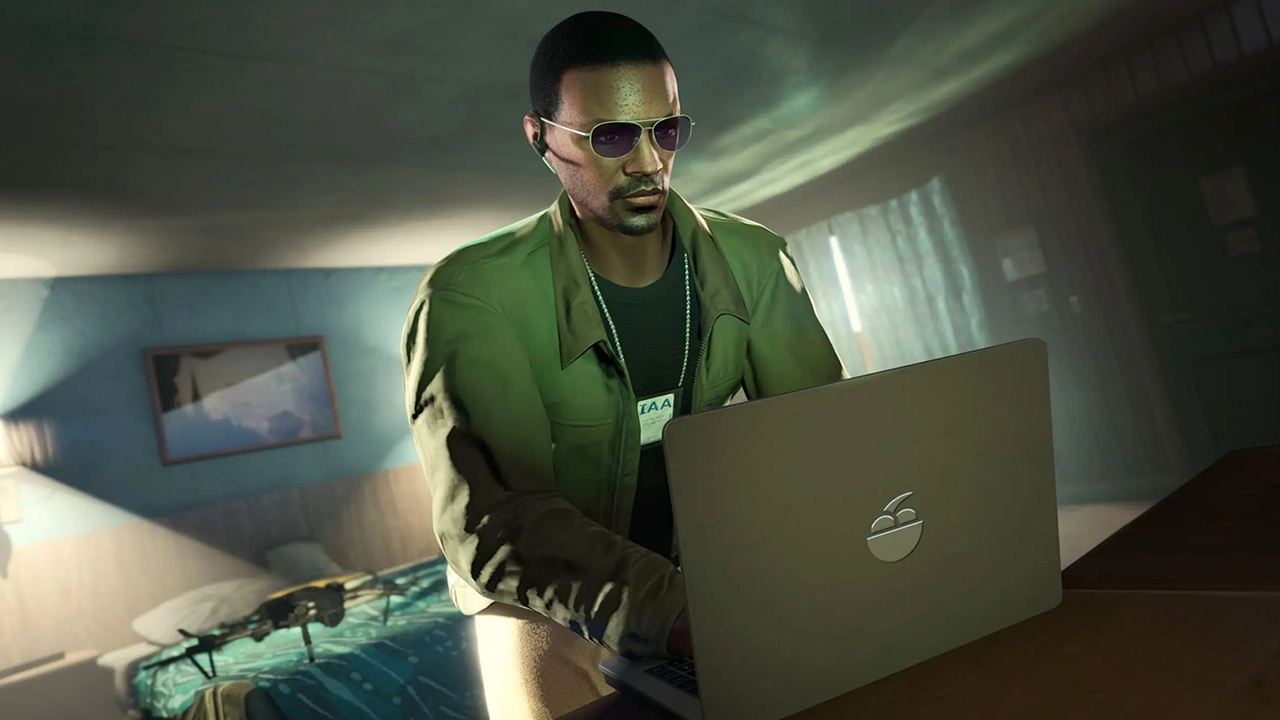
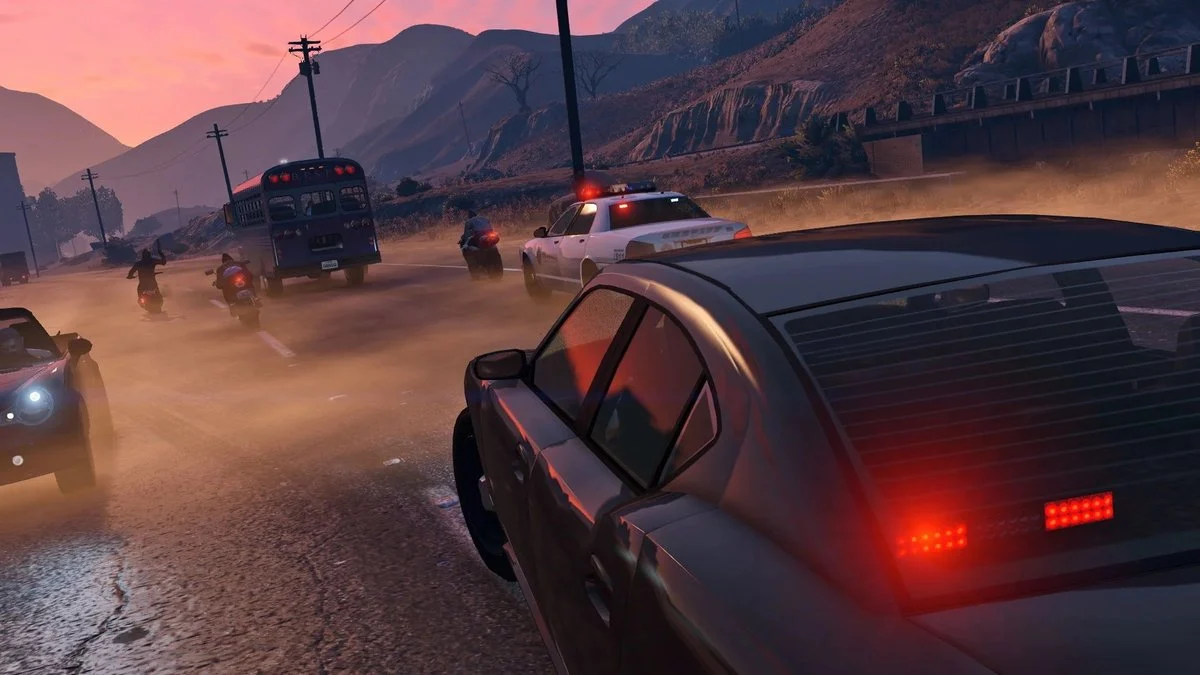
Here is a breakdown of everything happening in GTA Online for the event week running from June 4th to June 10th. With an incredibly rare 4x multiplier on the newly added Community Missions, alongside massive payouts for taking down Stash Houses, this is a highly profitable week for players looking to stack cash. New Community Missions & $500k Bonus Rockstar has rotated in seven brand-new Community Missions to the series. If you complete all seven, you will receive a massive $500,000 bonus d
-
In what can only be described as a misguided quest for internet clout, police were recently called to the Rockstar North headquarters in Edinburgh, Scotland, after a group of YouTubers attempted to infiltrate the building in search of Grand Theft Auto VI secrets. A Clumsy Attempt at Corporate Espionage According to a report from RockstarINTEL, a German YouTube collective explicitly targeted the Edinburgh studio, which serves as the lead development hub for Rockstar's flagship titles, including t
-
In a striking twist of digital irony, players who sought an unfair advantage in Grand Theft Auto Online are now finding themselves on the losing end. "Atlas Menu," a prominent and paid mod menu used for cheating in the popular multiplayer game, has suffered a massive data breach, exposing the sensitive personal information of thousands of its users to the public. A Breach of "Trust" Among Cheaters Atlas Menu built its reputation as a premium cheat service, heavily favored by exploiters for its a
-
The landscape of Grand Theft Auto V roleplay and multiplayer modding is undergoing a massive consolidation. Take-Two Interactive, the parent company of Rockstar Games, has officially requested the shutdown of RAGE:MP, one of the most popular alternatives to FiveM for custom GTA Online servers. The move marks another major step by Take-Two and Rockstar to centralize the GTA V multiplayer modding community under a single, officially controlled umbrella following their acquisition of the FiveM deve
-
If you've been paying attention to the recent trailers for Pokémon Legends: Z-A's Mega Dimension DLC, you'll no doubt know that doughnuts have a pretty big role to play in the dimension-hopping — what did you expect, it's Pokémon! The Pokémon Cafe's new menu looks set to bring these sweet treats into the real world, but it also might be teasing that a pair of legendary 'mon will make their return in the DLC. Yep, we live in a world where Pokémon spoilers can come from anywhere, even doughnuts. B
.jpg.7d0fbe28aa98faadd6579ad5cc0e8b3b.jpg)

.jpg.4a42947c5fc326ae0a500502b92417e5.jpg)


Reviews
-
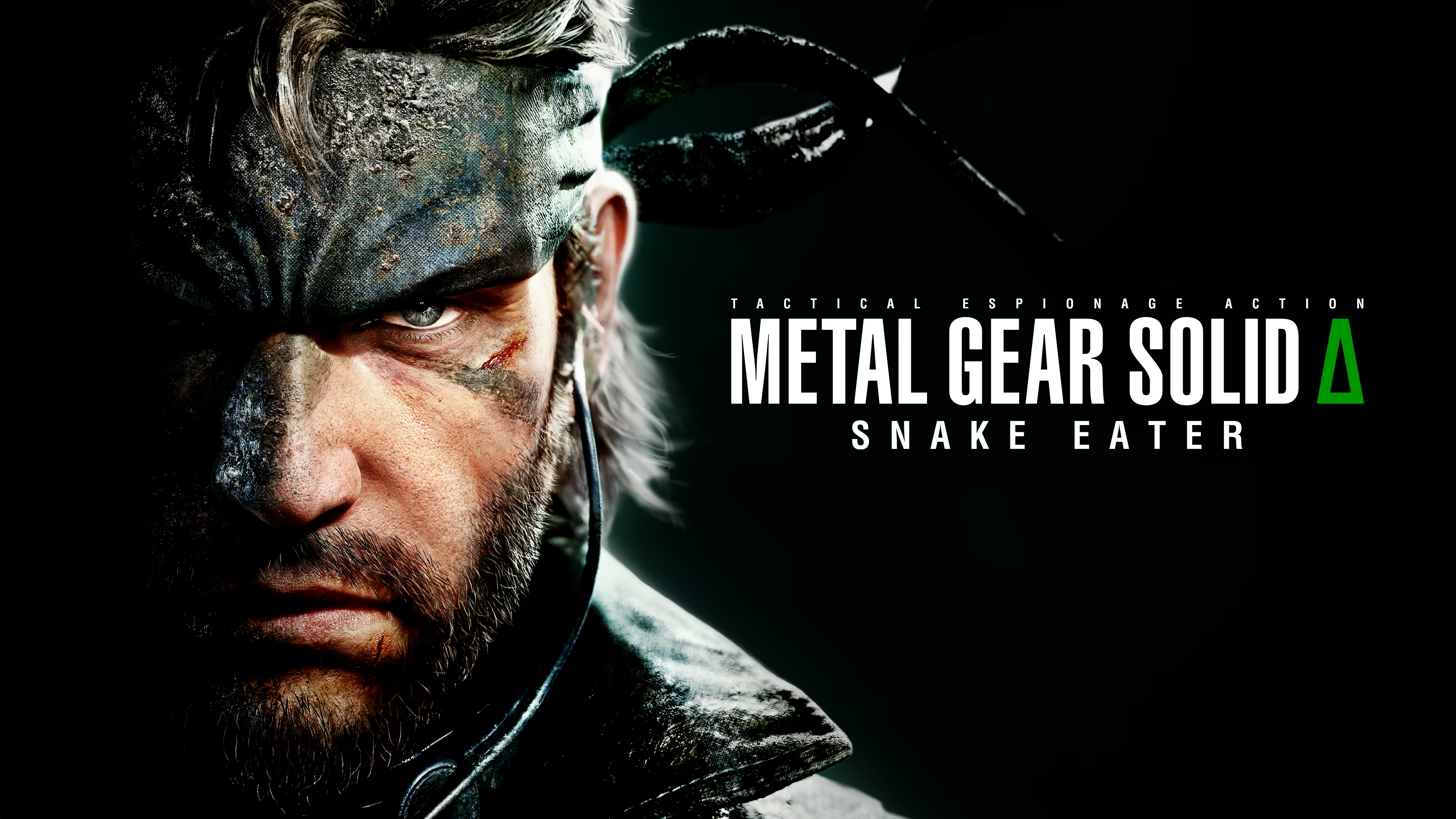
Eight months after its August 28, 2025 release on PS5, Xbox Series X|S, and PC, Metal Gear Solid Δ: Snake Eater stands tall as one of the best ways to experience Hideo Kojima’s 2004 masterpiece. Built in Unreal Engine 5, this isn’t a radical reimagining—it’s a loving, high-fidelity recreation that modernizes visuals, controls, and quality-of-life while keeping every iconic moment intact. Graphics & Atmosphere: 9.5/10 The Tselinoyarsk jungle has never felt more alive. Dense foliage sways real
-
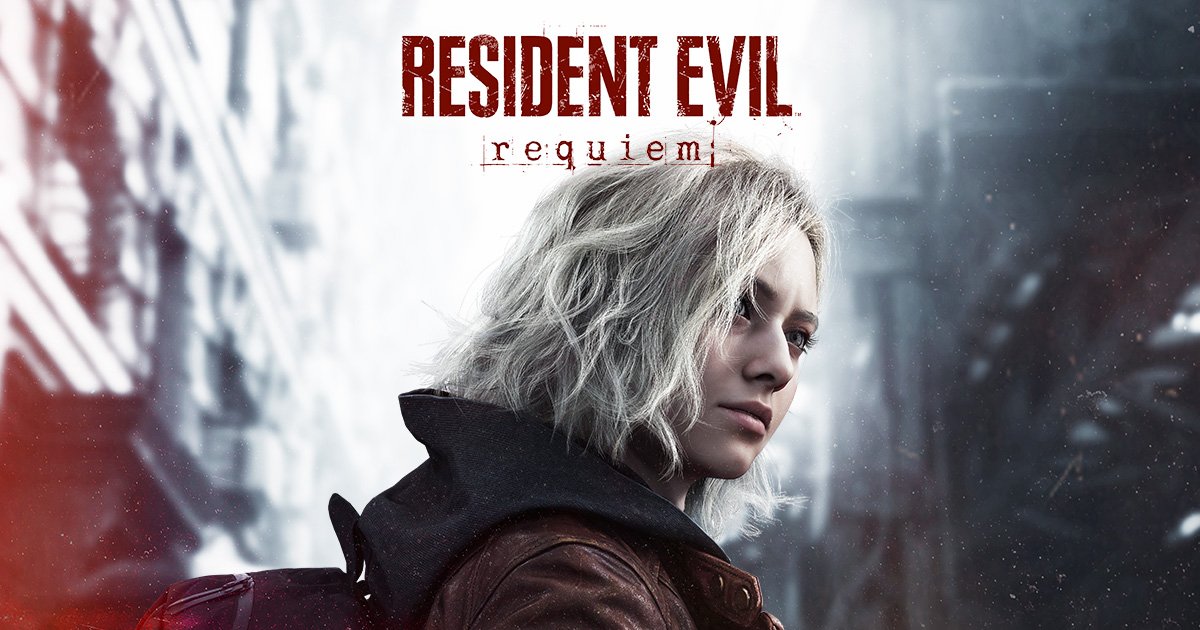
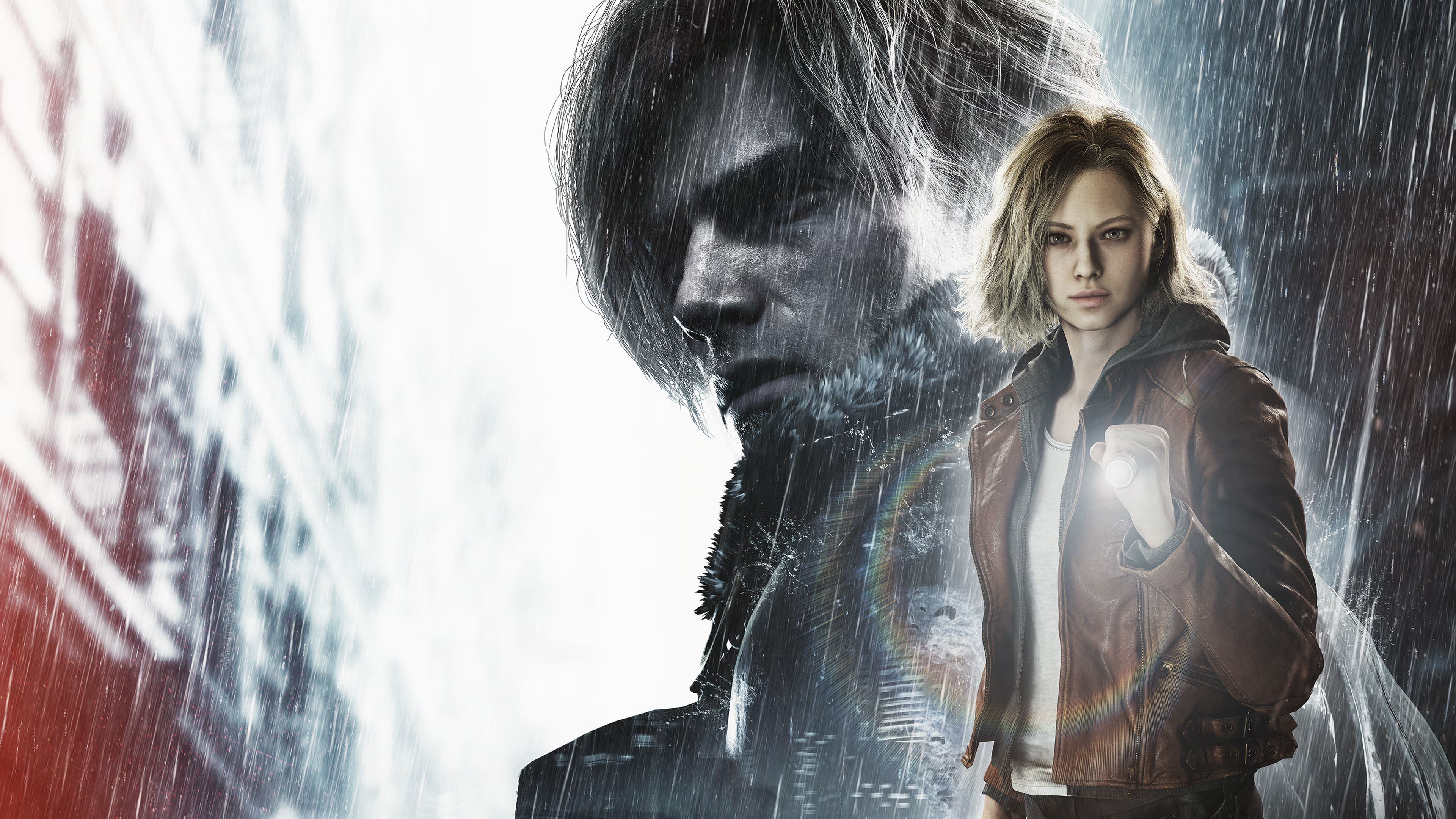
Just 24 hours after its February 27, 2026 launch, Resident Evil Requiem (the ninth mainline entry) already feels like the series' victory lap after three decades of evolution. Directed by Koshi Nakanishi and built on the RE Engine, this is Capcom at the absolute peak of its powers—blending the raw, claustrophobic terror of Resident Evil 7 and Village with the slick, over-the-top action of the RE4 remake into one cohesive, heart-pounding package. It's not just another zombie game; it's the emotio
-
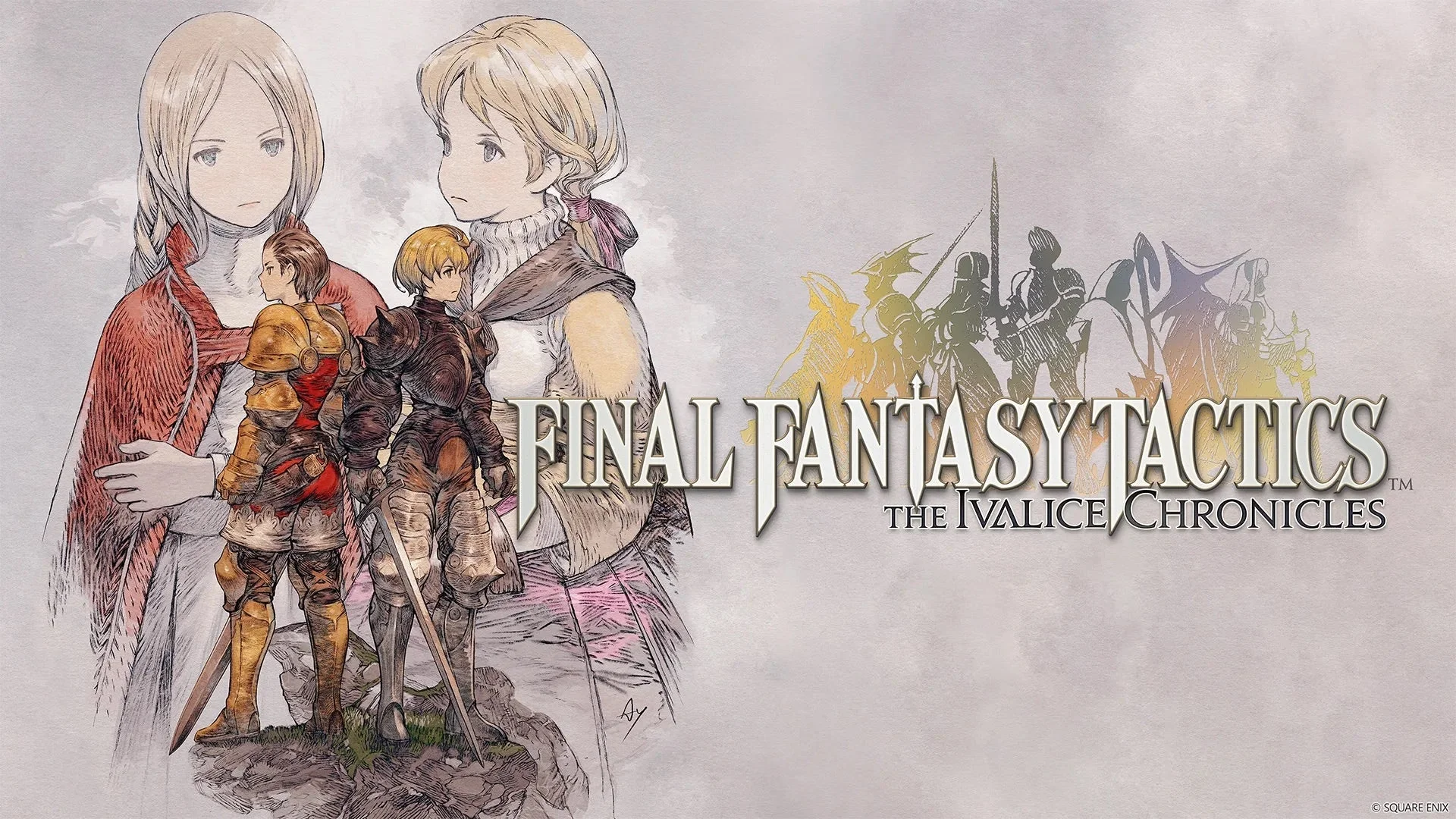
For nearly three decades, Final Fantasy Tactics has sat on the strategy RPG throne, often imitated but rarely equaled. With the release of The Ivalice Chronicles late last year, Square Enix has finally brought Ramza Beoulve’s war-torn journey to modern hardware. After spending 60+ hours with the game (and another 10 tinkering with the "Classic" mode), I can confidently say this is the definitive way to play the masterpiece—though it comes with a few baffling omissions that keep it from absolute
-
Final Fantasy VII Remake Intergrade, the enhanced version of the 2020 classic, finally arrives on Nintendo Switch 2 just days ago on January 22, 2026. This port brings the full Intergrade experience—including the base game and the excellent Yuffie-focused Episode INTERmission DLC—to Nintendo's powerful new hybrid console. For years, fans wondered if Square Enix's ambitious remake project would ever grace a Nintendo platform. Now that it's here, it feels like a perfect fit, delivering one of the
-
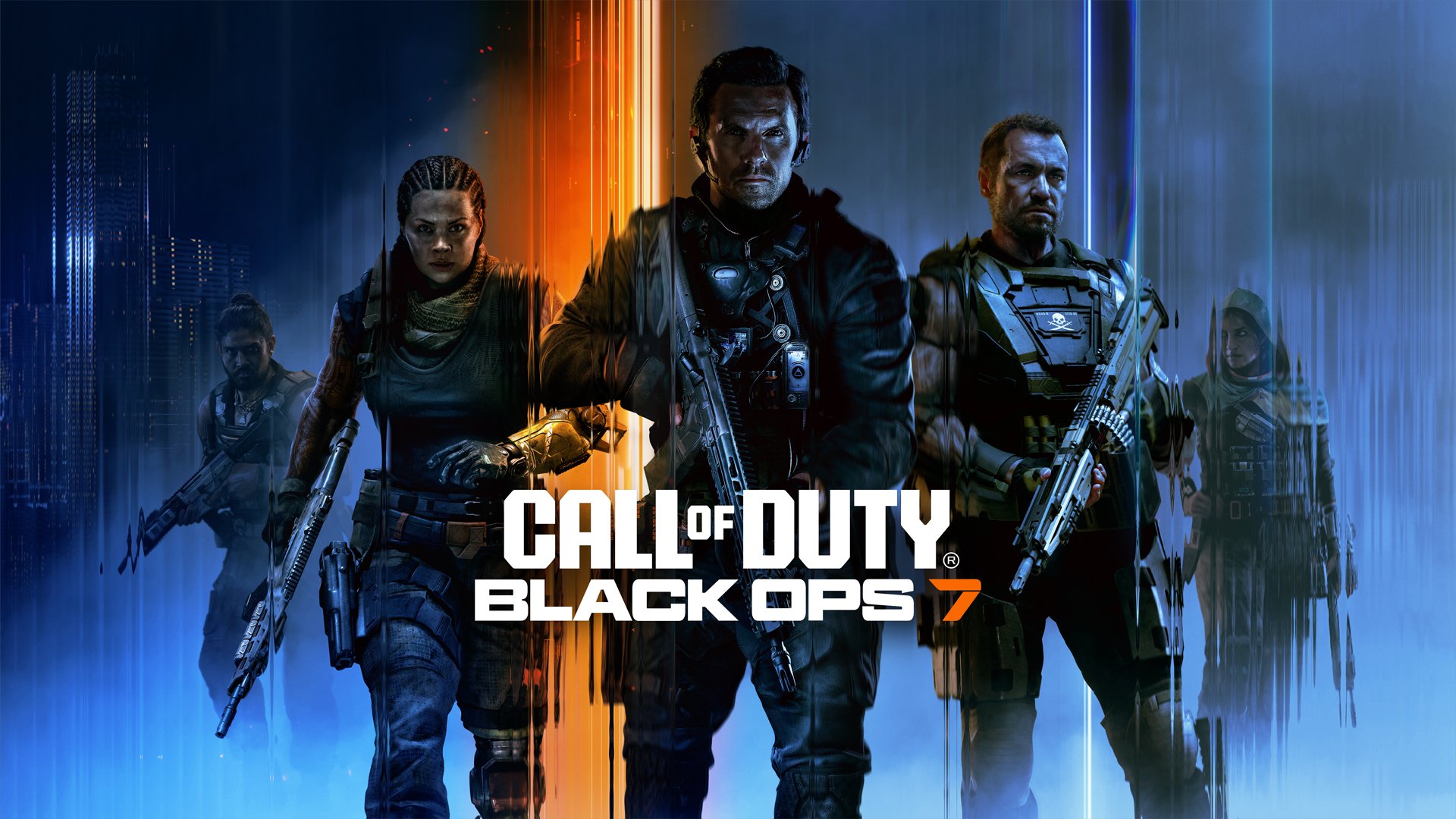
Look, Black Ops 7 is the latest in Treyarch's Black Ops saga—a direct sequel to Black Ops 2 set in 2035, where you're chasing ghosts from the past (literally, with fear toxins and nightmare realms) as David "Section" Mason and his squad take on some evil tech corp called The Guild. Critics gave it a middling 65-66 on Metacritic, calling it "mixed." Users? A brutal 1.6—"Overwhelming Dislike"—the lowest ever for a Call of Duty game. Steam's at 35% positive. Why the Grand Canyon of a review gap? Cr

Guides / Walkthroughs
-
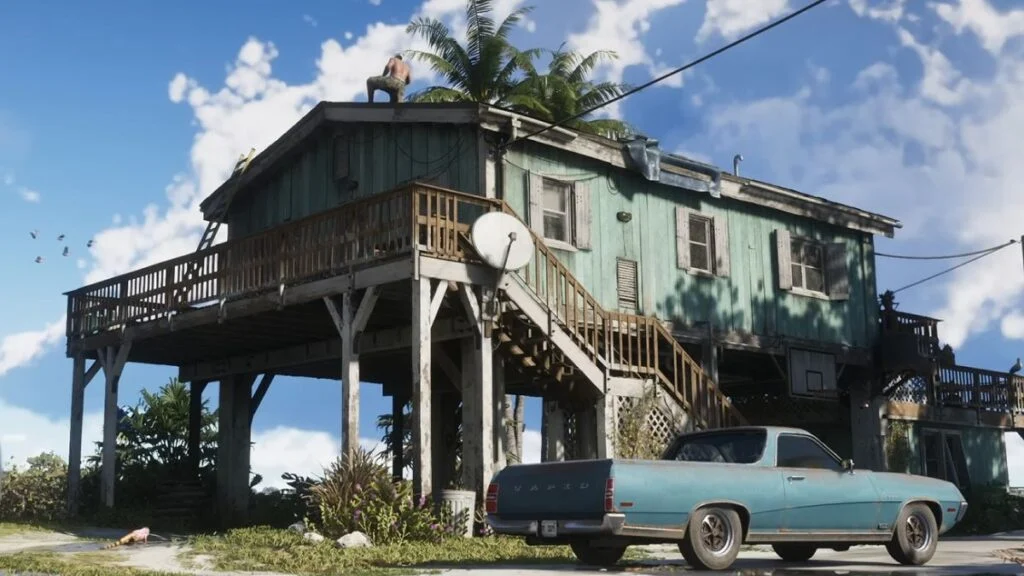
Here is a breakdown of everything we know so far about safehouses in GTA 6. The Known Locations Based on mapping projects and trailer footage, we already have a glimpse at a few places the protagonists will call home: The Keys Safehouse: The trailer heavily features a moderately run-down house where Jason and Lucia are seen relaxing and plotting. The mapping community identified the view outside the window as matching a location in the game's equivalent of Key Largo (the first island just off t
-
Paradox Junction is a time-bending Nuketown remake in Black Ops 7 Zombies. You constantly switch between two timelines: Present (Destroyed/Ruined Nuketown): Post-nuke chaos with cysts, black goo walls, fire tornadoes, and ruined structures. Past (Clean/1950s Nuketown): Pristine 1950s version with intact buildings and different item spawns. Time travel is automatic after Round 6–7 (usually on a dog/special round) or manual via Temporal Conduits (1,500 Essence each, marked on your map). The East
-
Spoiler Warning: This is a complete story walkthrough with every major puzzle solution, key item location, enemy tip, and collectible note. It covers the entire main campaign (approx. 12-15 hours on Standard). The game alternates between two protagonists: Grace Ashcroft (new FBI analyst) – First-person survival horror (RE7/Village style). Limited inventory (8 slots), focus on evasion, crafting, and resource management. Leon S. Kennedy – Third-person action (RE4 Remake style). Larger inventory,
-
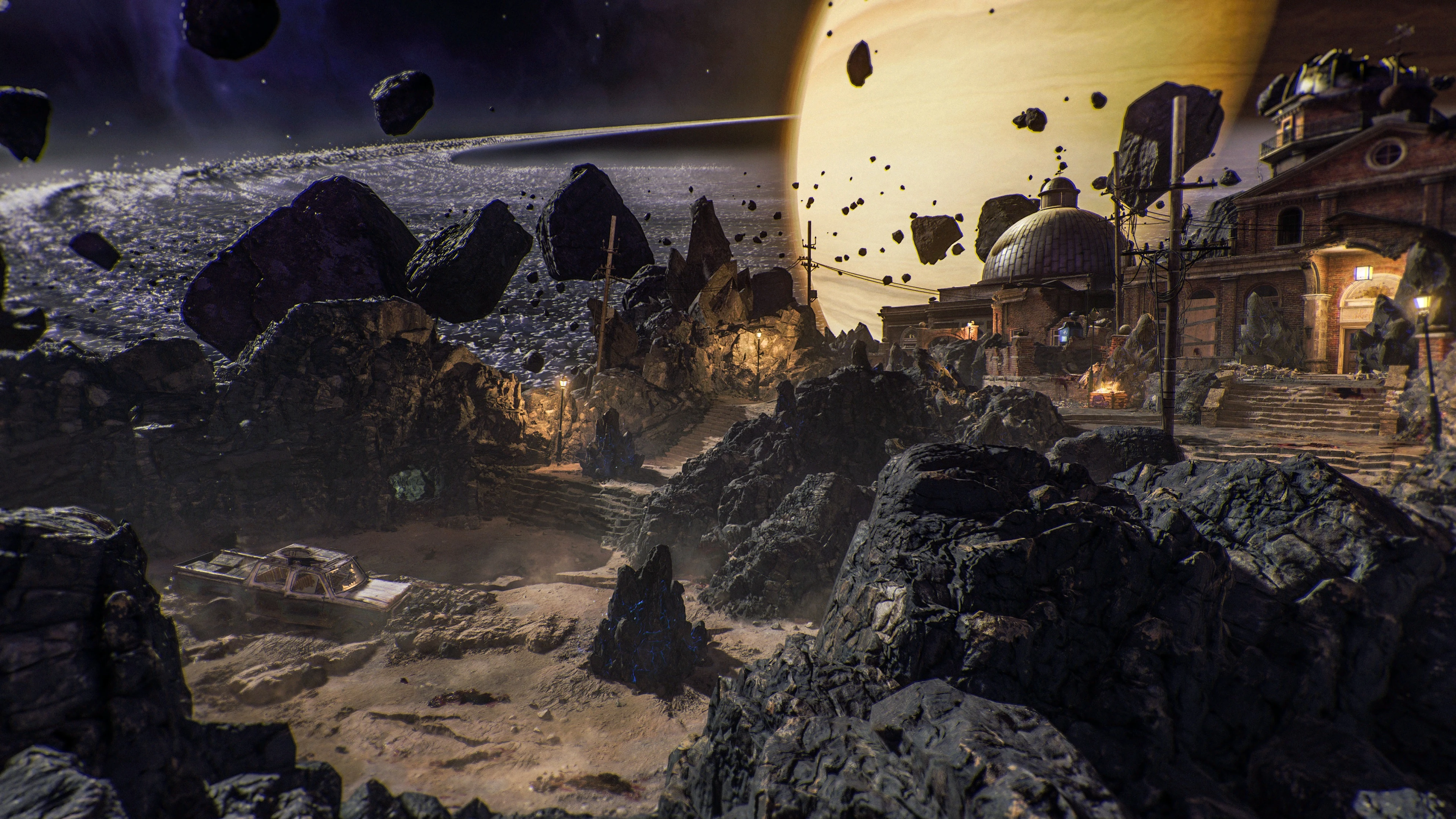
This is a comprehensive guide to the Main Quest (Easter Egg) for the Call of Duty: Black Ops 7 Zombies map, Astra Malorum. This map is set on an abandoned observatory drifting in Saturn's rings. The Main Quest involves uncovering the fate of Dr. Thurston, battling the security drone O.S.C.A.R., and defeating the cosmic entity Caltheris. Phase 1: Setup & Wonder Weapon (LGM-1) You cannot complete the main quest without the LGM-1 Wonder Weapon. It is highly recommended to obtain this early. 1.
-
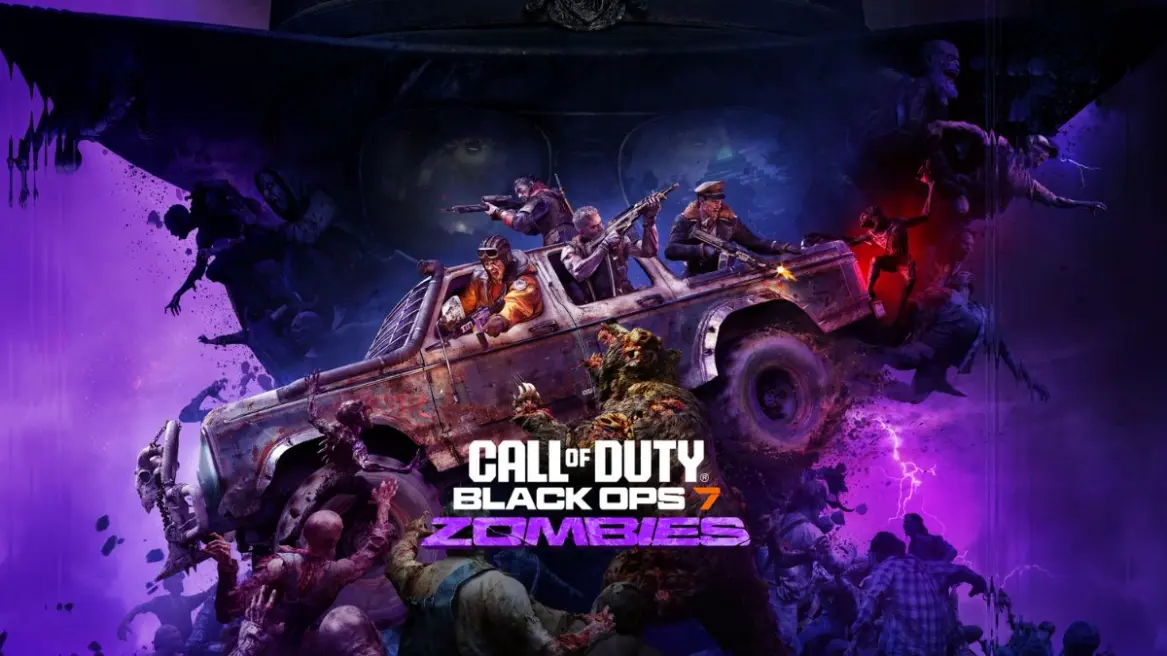
this is the complete, no-BS step-by-step for conquering the biggest Zombies map ever (figure-8 hellscape with fog roads, Ol' Tessie truck, and Veytharion boss). Launched Nov 14, 2025 – EE live immediately. Unlocks Dust to Dust & I Heard You Like Upgrades achievements, Cursed Mode Relics (post-boss interact frozen lake object). Solo viable (use Gobblegums: Perkaholic, Anywhere But Here, Me To We), but squad divides fetch quests. Aim <Round 30 start boss for easy mode. Prep Loadout/Tips: T

Top Downloads
-
OpenIV Fix for GTA V Enhanced
Free
GTA V Enhanced Compatibility Patcher for OpenIV Introduction This script is an essential utility for anyone using the new Grand Theft Auto V Enhanced. Many popular tools, including the current version of OpenIV, have not yet been updated to recognize the new game executable, GTA5 Enhanced.exe. They still search for the original GTA5.exe, causing compatibility issues. This patcher solves the problem automatically. It configures your existing OpenIV installation to correctly locate your official- 46 Downloads
- 0 Comments
-
Sys-Patch Sysmodule
Free
2025_11_17 UPDATED TO SUPPORT NEW SET OF ES PATCHES. Thanks to the great work of@bthwe have the most recent release with Firmware 21.0.0 support Now full supporting Firmware 21+ and Atmosphère 1.10.0, and avoiding crash when PRODINFO is blanked. Additional, a new Patch was created, this new patch is aimed to avoid the blue screen crash introduced on Firmware 17 when user have their Prodinfo blanked, via incognito / Atmosphère Blanker / Hekate cal0 Blanker. This patch will avoid the crash so t- 29 Downloads
- 0 Comments
-
GTA VI Loading Screen Ft GTA Online
Free
GTA 6 Loading Screen This mods will replace your Loading Screen How to install: - Open OpenIV and select package Installer search this package - and click install - Make sure install this to mods folder How to uninstall: - Please READ Guide.txt inside archive. Hope you like it.- 26 Downloads
- 0 Comments
-
French Riviera V [Add-On SP]
Free
First release under new label name FV Mods. French Riviera is a port of GTA IV's map made by nine30. https://gtaforums.com/topic/750882-wipiv-french-riviera/ Changelog: GTA 5 Legacy (Story Mode) Hotfix 1 version added. It fixes collision issues and improves the loading of traffic path nodes, albeit is optional because of game limits for this version as well as the fact it causes game crashes in some locations. FiveM Legacy version added, version 1.0. GTA 5 Enhanced version added, first version- 20 Downloads
- 0 Comments
-
Immersive Enhanced Sound Pack
Free
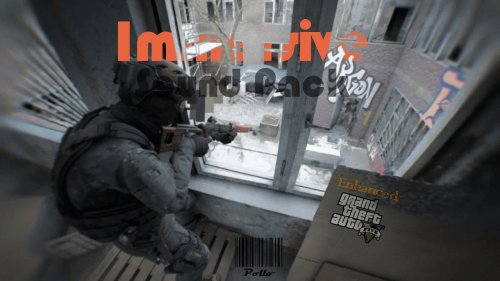
This is the full release Version V2.0 Change log. This update included the following. I have reworked each weapon, adding new sound to some weapons, also adding new Mid, Far Distance Sounds. Weapons that received New sounds. •Most of the Pistol. • Smg's •All Snipers •Minigun •Added New Vehicles Sounds, Sirens, and Exhaust backfire. •New Reload Sound This Versions Works with GTAV Enhanced. GTAV Enhanced Version: change log V3.0 This Update was long overdue Here are the update logs •New Sounds F- 19 Downloads
- 0 Comments


-
OpenIV Fix for GTA V Enhanced
Free
GTA V Enhanced Compatibility Patcher for OpenIV Introduction This script is an essential utility for anyone using the new Grand Theft Auto V Enhanced. Many popular tools, including the current version of OpenIV, have not yet been updated to recognize the new game executable, GTA5 Enhanced.exe. They still search for the original GTA5.exe, causing compatibility issues. This patcher solves the problem automatically. It configures your existing OpenIV installation to correctly locate your official- 204 Downloads
- 0 Comments
-
Sys-Patch Sysmodule
Free
2025_11_17 UPDATED TO SUPPORT NEW SET OF ES PATCHES. Thanks to the great work of@bthwe have the most recent release with Firmware 21.0.0 support Now full supporting Firmware 21+ and Atmosphère 1.10.0, and avoiding crash when PRODINFO is blanked. Additional, a new Patch was created, this new patch is aimed to avoid the blue screen crash introduced on Firmware 17 when user have their Prodinfo blanked, via incognito / Atmosphère Blanker / Hekate cal0 Blanker. This patch will avoid the crash so t- 155 Downloads
- 0 Comments
-
Immersive Enhanced Sound Pack
Free
This is the full release Version V2.0 Change log. This update included the following. I have reworked each weapon, adding new sound to some weapons, also adding new Mid, Far Distance Sounds. Weapons that received New sounds. •Most of the Pistol. • Smg's •All Snipers •Minigun •Added New Vehicles Sounds, Sirens, and Exhaust backfire. •New Reload Sound This Versions Works with GTAV Enhanced. GTAV Enhanced Version: change log V3.0 This Update was long overdue Here are the update logs •New Sounds F- 124 Downloads
- 0 Comments
-
GTA VI Loading Screen Ft GTA Online
Free
GTA 6 Loading Screen This mods will replace your Loading Screen How to install: - Open OpenIV and select package Installer search this package - and click install - Make sure install this to mods folder How to uninstall: - Please READ Guide.txt inside archive. Hope you like it.- 113 Downloads
- 0 Comments
-
French Riviera V [Add-On SP]
Free
First release under new label name FV Mods. French Riviera is a port of GTA IV's map made by nine30. https://gtaforums.com/topic/750882-wipiv-french-riviera/ Changelog: GTA 5 Legacy (Story Mode) Hotfix 1 version added. It fixes collision issues and improves the loading of traffic path nodes, albeit is optional because of game limits for this version as well as the fact it causes game crashes in some locations. FiveM Legacy version added, version 1.0. GTA 5 Enhanced version added, first version- 85 Downloads
- 0 Comments
-
OpenIV Fix for GTA V Enhanced
Free
GTA V Enhanced Compatibility Patcher for OpenIV Introduction This script is an essential utility for anyone using the new Grand Theft Auto V Enhanced. Many popular tools, including the current version of OpenIV, have not yet been updated to recognize the new game executable, GTA5 Enhanced.exe. They still search for the original GTA5.exe, causing compatibility issues. This patcher solves the problem automatically. It configures your existing OpenIV installation to correctly locate your official- 1,162 Downloads
- 0 Comments
-
Immersive Enhanced Sound Pack
Free
This is the full release Version V2.0 Change log. This update included the following. I have reworked each weapon, adding new sound to some weapons, also adding new Mid, Far Distance Sounds. Weapons that received New sounds. •Most of the Pistol. • Smg's •All Snipers •Minigun •Added New Vehicles Sounds, Sirens, and Exhaust backfire. •New Reload Sound This Versions Works with GTAV Enhanced. GTAV Enhanced Version: change log V3.0 This Update was long overdue Here are the update logs •New Sounds F- 914 Downloads
- 0 Comments
-
GTA VI Loading Screen Ft GTA Online
Free
GTA 6 Loading Screen This mods will replace your Loading Screen How to install: - Open OpenIV and select package Installer search this package - and click install - Make sure install this to mods folder How to uninstall: - Please READ Guide.txt inside archive. Hope you like it.- 747 Downloads
- 0 Comments
-
Premium Deluxe Motorsport Car Dealership
Free
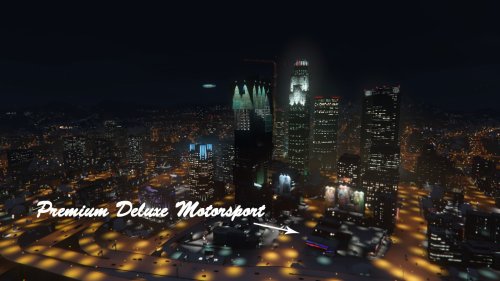
If you like this mod, please like, rate, comment and subscribe, also Donate :) And also I recommended to use this mod together with Single Player Apartment or Persistence II. Features: This mod brings Car Dealership into GTA V. Adds Unlimited Choice of Colors, Customize Plate Number, Test Drive and Preview. This mod support Add-On Vehicles. Requirements: - Latest ScriptHookV - Latest Community Script Hook V .NET Install: 1. Make sure you have all the Requirements Installed. 2. Extract, Drag a- 565 Downloads
- 0 Comments
-
24-Language Pack
Free
24-Language Pack NOTE: This language pack is only for GTA: San Andreas, not pretty much every game of the franchise. Hello, my name is Afro, and this is a 24-language pack along with 4 fonts.txd files if needed. Language GXT files included: american, arabic (required fonts.txd file), belarusian (required fonts.txd file), bosnian, czech, dutch (wip, will update it in a future version), french, german, hungarian, indonesian, italian, japanese (required fonts.txd file), korean (required fonts.txd f- 364 Downloads
- 0 Comments

-
OpenIV Fix for GTA V Enhanced
Free
GTA V Enhanced Compatibility Patcher for OpenIV Introduction This script is an essential utility for anyone using the new Grand Theft Auto V Enhanced. Many popular tools, including the current version of OpenIV, have not yet been updated to recognize the new game executable, GTA5 Enhanced.exe. They still search for the original GTA5.exe, causing compatibility issues. This patcher solves the problem automatically. It configures your existing OpenIV installation to correctly locate your official- 1,162 Downloads
- 0 Comments
-
Immersive Enhanced Sound Pack
Free
This is the full release Version V2.0 Change log. This update included the following. I have reworked each weapon, adding new sound to some weapons, also adding new Mid, Far Distance Sounds. Weapons that received New sounds. •Most of the Pistol. • Smg's •All Snipers •Minigun •Added New Vehicles Sounds, Sirens, and Exhaust backfire. •New Reload Sound This Versions Works with GTAV Enhanced. GTAV Enhanced Version: change log V3.0 This Update was long overdue Here are the update logs •New Sounds F- 914 Downloads
- 0 Comments
-
GTA VI Loading Screen Ft GTA Online
Free
GTA 6 Loading Screen This mods will replace your Loading Screen How to install: - Open OpenIV and select package Installer search this package - and click install - Make sure install this to mods folder How to uninstall: - Please READ Guide.txt inside archive. Hope you like it.- 747 Downloads
- 0 Comments
-
Premium Deluxe Motorsport Car Dealership
Free
If you like this mod, please like, rate, comment and subscribe, also Donate :) And also I recommended to use this mod together with Single Player Apartment or Persistence II. Features: This mod brings Car Dealership into GTA V. Adds Unlimited Choice of Colors, Customize Plate Number, Test Drive and Preview. This mod support Add-On Vehicles. Requirements: - Latest ScriptHookV - Latest Community Script Hook V .NET Install: 1. Make sure you have all the Requirements Installed. 2. Extract, Drag a- 565 Downloads
- 0 Comments
-
24-Language Pack
Free
24-Language Pack NOTE: This language pack is only for GTA: San Andreas, not pretty much every game of the franchise. Hello, my name is Afro, and this is a 24-language pack along with 4 fonts.txd files if needed. Language GXT files included: american, arabic (required fonts.txd file), belarusian (required fonts.txd file), bosnian, czech, dutch (wip, will update it in a future version), french, german, hungarian, indonesian, italian, japanese (required fonts.txd file), korean (required fonts.txd f- 364 Downloads
- 0 Comments