




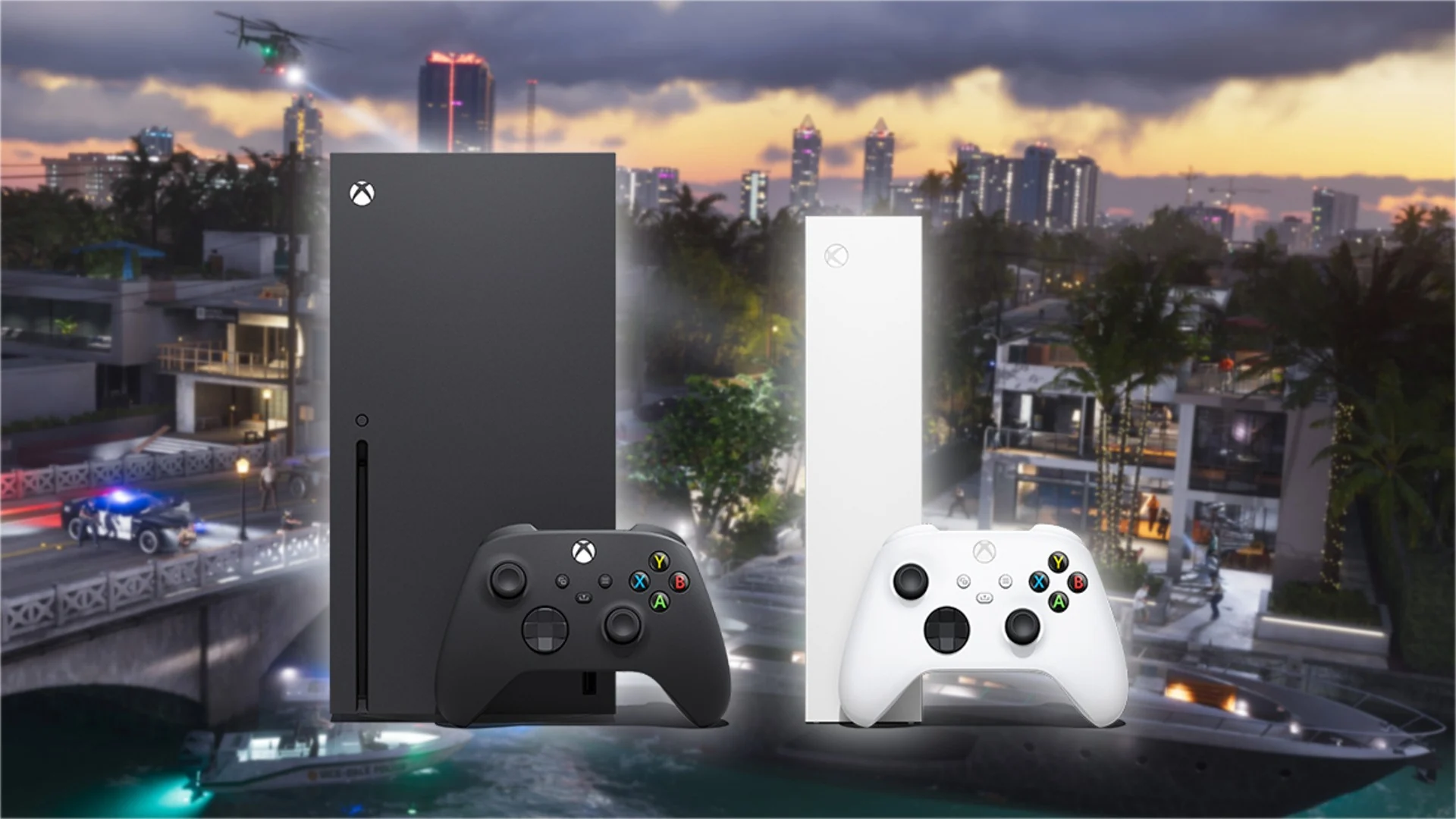

Grand Theft Auto 6 has been out for just over a week, and millions of players are pouring hours into Leonida every day. Now some of those players are finding their consoles can't keep up. Reports of crashes, overheating and sudden shutdowns have grown since launch. A repair technician says the game is sending more Xbox consoles to his bench than usual.
But the full picture looks less like a game wrecking hardware and more like a game exposing problems that were already there.
A Spike in Xbox Repairs
A repair technician in Poland, who posts on X as Modyfikator89, says Xbox overheating and mid-game shutdowns have risen since GTA 6 launched. The numbers stand out because of where the shop is. Xbox consoles are uncommon in Poland, and the shop used to see about 10 Xbox repairs a month. Since launch, Xboxes have made up about 2 in every 10 repairs each day.
The faults he lists sound familiar to anyone who has dealt with a dying console. They include overheating, shutdowns mid-game, no picture before the fan stops, slowdowns, and freezes during system updates.
PlayStation Players Hit First
The early wave of complaints came from PlayStation owners. Those reports ran from crashes to consoles that wouldn't turn back on. Many PS5 players saw error code CE-108255-1 in the middle of a session, which Sony describes as a generic application error tied to the game being played.
Rockstar's first post-launch patch, update 01.002.002, fixed several crashes, but reports kept coming. The worst cases, such as consoles that died for good or smelled of smoke, are rare and appear to be one-off incidents.
One PS5 that was examined shows what a console under strain looks like from the inside. It had logged 235 days, 10 hours and 37 minutes of total runtime. Its error logs showed 40 Main SoC Access Errors, seven APU VRM Power Fail entries and seven SSD Controller Watchdog Errors. That's a machine with a long history of problems, not one that failed out of nowhere.
Why GTA 6 Pushes Hardware So Hard
Part of the explanation is how GTA 6 runs. Rockstar targeted 30fps across PS5, PS5 Pro and Xbox Series X|S, and Digital Foundry ruled out a 40fps mode even on PS5 Pro. That leaves the CPU and GPU under sustained heavy load, a level of stress few games apply.
Add the kind of marathon sessions a GTA launch brings, and weak spots start to show. Long play sessions can bring out existing faults like dust-clogged heatsinks, dried thermal paste or liquid metal problems, even on consoles that run other games without trouble.
The power numbers don't point to the game asking for more than the hardware was built for. The examined PS5 drew about 220W in a quiet scene, 274.2W at full load and 67W with the game closed. That peak is within the original PS5's 350W rating.
Keeping the Panic in Check
There's no sign that GTA 6 is destroying healthy consoles. Sony, Microsoft and Rockstar haven't blamed the game for hardware damage. The affected consoles are a small fraction of a player base in the tens of millions, and the Xbox figures come from one repair shop's account, not a wider study.
A more accurate way to put it: GTA 6 is a demanding game landing on consoles that are now several years old, many of which have never been cleaned. If a console already had a fault, a week of long Vice City sessions is a fast way to find it.
How to Protect Your Console
If you're planning to keep playing for hours at a time, some basic upkeep goes a long way:
Give it room to breathe. Set the console on a hard, flat surface with about 10 cm (4 in) of clear space around it. Keep it out of closed cabinets, off the floor and away from dust.
Clean it regularly. Every month or two, power it down fully, unplug it, and gently vacuum the vents or use short bursts of compressed air. Don't let the fan spin while you do it.
Stay updated. Keep both the system software and the game on the latest versions.
Watch for warning signs. Pay attention if the fans get louder or the case runs hot during long sessions.
If problems have already started, a Safe Mode cache clear is a quick first step for software-style crashes on PS5. If shutdowns continue, stop playing and get the console serviced. Owners of launch-era hardware should be especially careful. Older PS5s may need a professional to check their liquid metal. Running them horizontally is often recommended to slow liquid metal creep, though Sony supports both orientations and later revisions improved how the material is contained.
A Backup Plan if Your Console Dies
This adds to an already expensive picture. High console prices were already a big barrier to GTA 6 for many players, and hardware worries make the PS5-or-Xbox decision harder. If your console does give out halfway through the story, there's a fallback. Cloud streaming can keep you playing without buying a new console, and GTA 6 is available through Xbox Cloud Gaming on Xbox One and Series X|S.
The bottom line: GTA 6 isn't killing healthy consoles. It's finding the ones that were already on their way out. A quick clean and some breathing room could be what keeps yours running until the credits roll.
Recommended Comments