




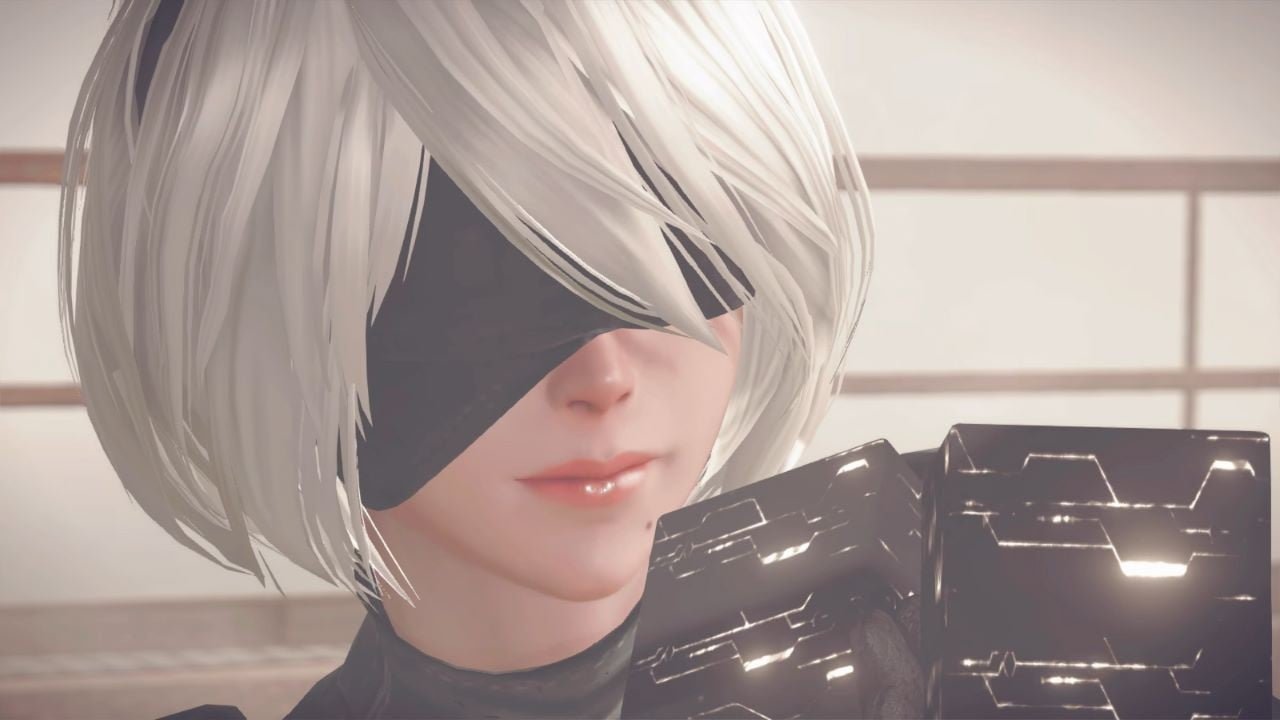

Nintendo released its latest firmware update for Switch 2 last night, ushering in a handful of general improvements for the console. Alongside these tweaks, the update also appears to have coincided with some compatibility fixes, including one title we've been waiting to see up and running for a while: NieR:Automata The End of YoRHa Edition (thanks for the heads up, My Nintendo News).
Square Enix and PlatinumGames' sci-fi ARPG has long been sitting in a pretty bad way on Switch 2, with many users reporting frequent crashes when trying to get it up and running on the new hardware. A glance at Nintendo's compatibility information site before today listed NieR: Automata as "Unsupported - Problems with game progression have been found", but that all seems to be in the rear-view as of system update 21.0.1.
As of 25th November 2025 (that's today), the game's listing has been updated as "supported" on Switch 2, with the note that "previously identified issues have been fixed".
It's a welcome change, because NieR: Automata ruled on Switch 1, and now we have the perfect excuse to dive in all over again. In our 9/10 review of the initial Switch release, we described Automata as "a top-notch port that has clearly been produced with respect and focus, often surpassing our expectations in both visuals and performance". Sigh as if we didn't already have enough backlog games to get through before the year is up...
Recommended Comments