
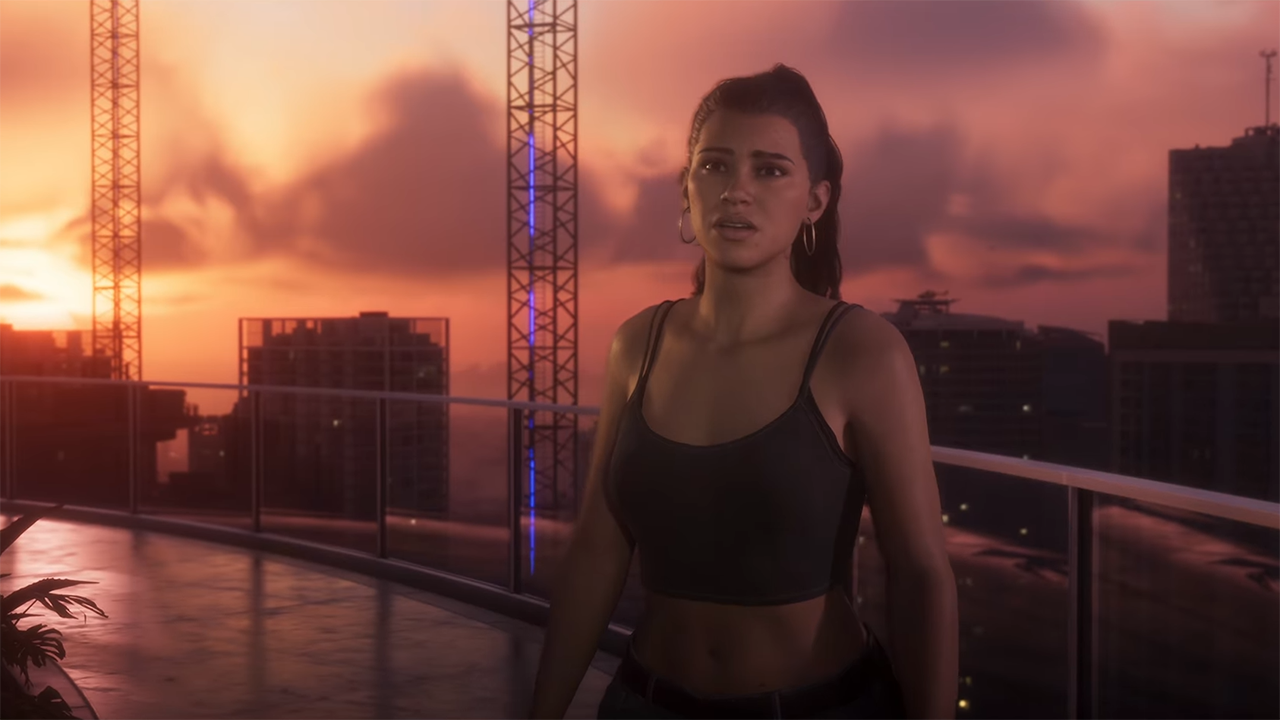

Grand Theft Auto VI has officially become the most pre-ordered game ever on both PlayStation and Xbox, according to statements from the platform holders themselves. With launch nine days away, the milestone is the clearest sign yet of how big this release is going to be.
Records on both platforms
In a blog post published Tuesday, PlayStation stated that GTA VI is "the most pre-ordered game in the history of PlayStation Store." Xbox CEO Asha Sharma made a matching claim on X, saying the game is already the most pre-ordered title ever on the Microsoft Store, more than a week before release.
The two companies worded their announcements differently, but the message is the same: no game has ever drawn this many advance purchases on either storefront.
Sony's warning: pre-load now
Sony's post came with advice for players. Because of the anticipation around the game, PlayStation strongly recommends that anyone who wants to play on launch day pre-load it as soon as possible.
The reasoning is practical. Millions of players downloading the game and logging in at once on November 19 could slow PlayStation's servers. The more people who install the game beforehand, the less strain on the network when the game unlocks, and the lower the chance of an outage at launch.
How to pre-load
Pre-loading opened on November 10. On PS5 it began at midnight local time, while Xbox Series X|S players could start from 12 a.m. GMT. A few things to know:
Storage: Plan for around 212 GB of free space on PS5.
Eligibility: You need a digital pre-order, or a redeemed code from a physical code-in-box copy. Those boxed copies contain a download code instead of a disc and are expected at retailers from November 12.
No early play: Pre-loading only gets the files onto your console. The game still unlocks at midnight local time on November 19 in all regions.
Auto-download: On PS5, enable auto-download for your pre-order in Game Library and leave the console on or in Rest Mode with internet access.
The bigger picture
The announcement follows Take-Two's description of GTA VI's pre-orders as "unprecedented" for the company. Rockstar and Take-Two haven't published an official pre-order count, but third-party estimates point to enormous numbers. Sensor Tower's tracker, which covers digital sales only, put pre-orders at roughly 7.71 million and about $751 million as of early November. That is just shy of the 8 million-plus pre-orders reported for Cyberpunk 2077, the benchmark often cited for the biggest pre-order total on record. Another report claimed around 10 million copies and nearly $1 billion. These are estimates, not audited figures.
Earlier tracking also showed PlayStation taking roughly three-quarters of digital pre-orders, though Xbox has consistently pushed back on how those splits are read, saying it has seen record orders of its own.
Whatever the final number turns out to be, the takeaway for players is simple: if you've pre-ordered, start the download now rather than on launch night.
Recommended Comments