




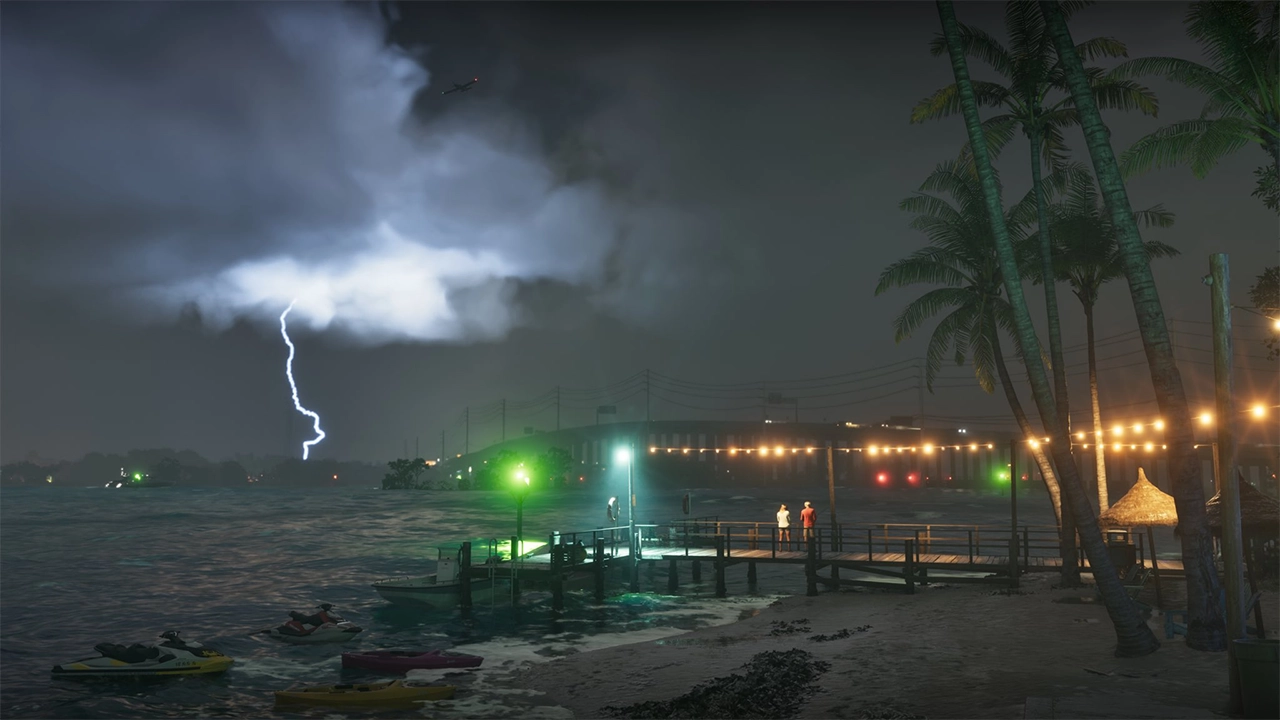

With Grand Theft Auto VI just days from release, Rockstar Games is still releasing marketing material. Six new screenshots have arrived, this time focused on the weather in the game's fictional state of Leonida.
The images were sent to The Weather Channel, an unusual but fitting outlet. Rockstar's marketing for the game has leaned heavily on its Florida-inspired setting, and the new shots show how much work has gone into the skies above it.
Rockstar on reimagining the weather
Alongside the images, Rockstar shared a statement from Owen Shepherd, its VP of Art for Light and Rendering. He explained that Leonida is modeled on modern-day Florida, a place known for some of the most unpredictable weather in the US. To match the detail of the rest of the game, the team says it rebuilt its weather systems from the ground up, aiming for conditions that feel more localized, persistent and dynamic.
According to Shepherd, the range runs from clear blue skies to towering cumulonimbus clouds. Rockstar hopes the result will resonate with Florida locals and with newcomers visiting Leonida for the first time.
The six screenshots
Each image comes with a short, tongue-in-cheek forecast written in the voice of a local weather report:
Rain: Heavy rain over the Keys has cut visibility sharply. Reflectors installed along the roads are meant to help drivers, and the caption jokes that it may be time to get your headlights fixed at Coastal Auto Care.

Swamp: A storm over Pelican Valley has turned already murky water nearly opaque, which makes the local wildlife hard to spot.

Fog: Sea fog rolling in off the ocean may block the view from hotels in South Ocean Beach.

Tropical storm: Choppy water is the concern here. The caption suggests a bigger boat for anyone heading to the Rusty Anchor for a drink.

Mist: High humidity leaves low-lying mist over Gambit Bay, setting up what the caption calls a tranquil start to hunting season.

Wind: More wind and rain are making the commute from Key Lento rough.

The captions name several locations, including Pelican Valley, South Ocean Beach, Gambit Bay and Key Lento. They also reinforce the game's mix of grim and humorous tones.
Weather has been a recurring theme
This isn't the first time Rockstar has pointed to weather as a headline feature. Earlier coverage tied to Game Informer's cover story highlighted hurricanes and a detailed weather system as part of the game's world. The new screenshots give players a much clearer look at how those conditions may appear on screen.
What's next
The release of GTA VI is now only days away, and the build-up has been busy. The game's download size has been confirmed at around 210GB, review copies have gone out to media outlets, and pre-order figures have set records. With launch so close, expect Rockstar to keep the new material coming.
Recommended Comments