




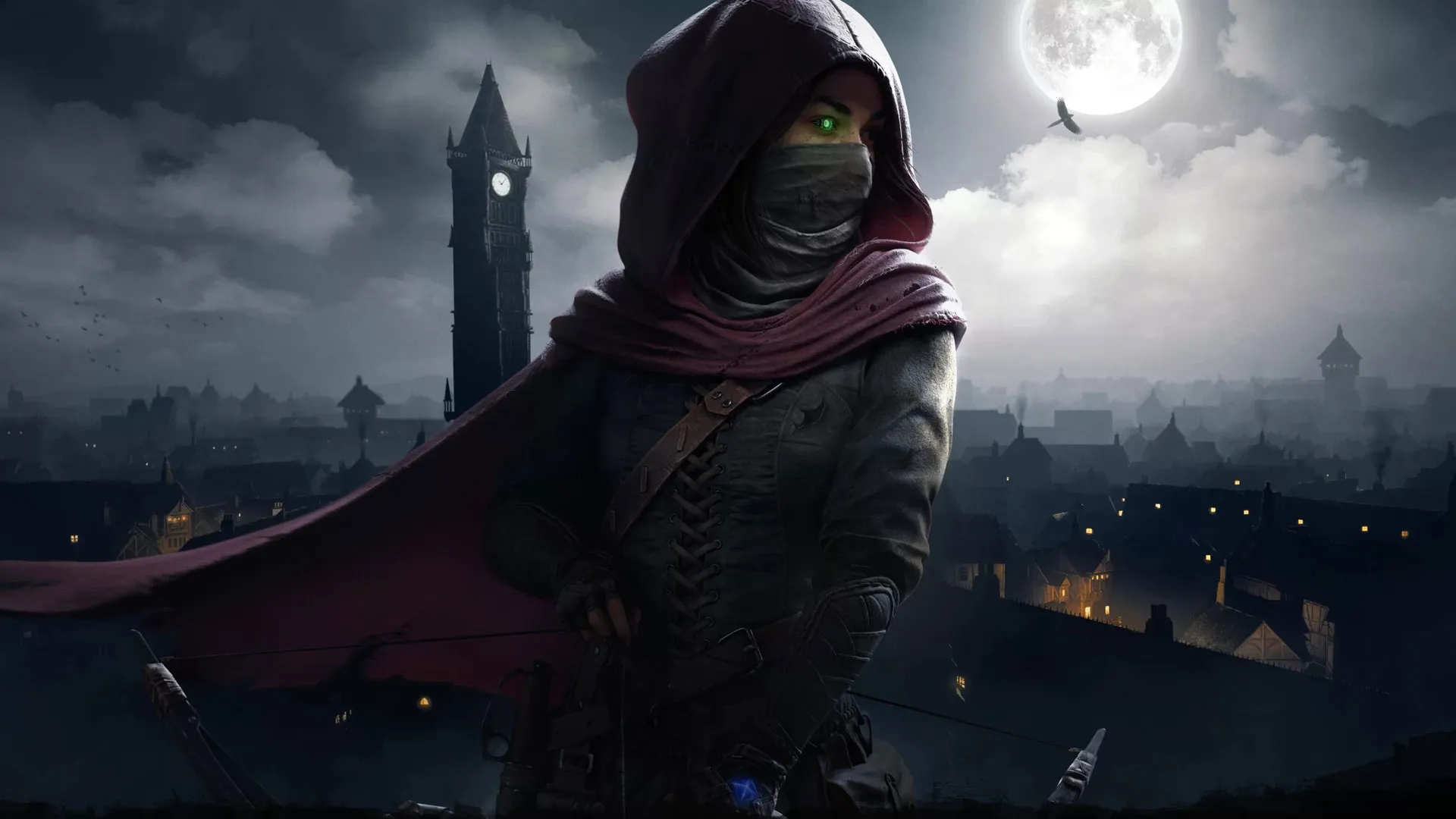

For fans who have spent the last decade waiting for a true successor to the Looking Glass Studios classics, Legacy of Shadow is a complicated gift. It is not the hardcore immersive sim of the late 90s, but it is also far better than the infamous 2014 reboot. It sits somewhere in the middle: a genuinely atmospheric VR stealth game that nails the feeling of being a master thief, even if it sometimes stumbles on the mechanics.
The Gist
You don’t play as Garrett this time. Instead, you step into the boots of Magpie, a street-smart protégé. However, the legendary Master Thief (voiced again by the iconic Stephen Russell) is present as a "construct"—a spirit guiding you through a mechanical eye.
The game is built from the ground up for VR, meaning the focus is on tactile interactions: physically reaching out to snatch loot, manually picking locks, and drawing your bowstring.
The Good
The Atmosphere is Back: The "City" feels right. The steampunk-meets-medieval aesthetic is heavy with fog, gloom, and gear-turning machinery. Hearing Stephen Russell’s gravelly voice in your ear instantly triggers nostalgia.
Tactile Thievery: This is where the game shines.
Looting: You don't just press 'X' to steal. You physically reach out, grab a goblet, and toss it over your shoulder into your backpack. It’s incredibly satisfying.
Lockpicking: You insert picks with one hand and apply tension with the other, listening for the tumbler clicks. It’s tense and immersive.
The Bow: Nocking a water arrow to douse a torch from across a courtyard feels fantastic.
The Light Gem: A clever UI adaptation places the classic visibility gem on the back of your hand. A quick glance tells you if you are hidden in shadow or exposed in the light.
Comfort: The game offers a robust suite of comfort options (vignetting, snap turning, teleport vs. smooth walk) making it accessible even if you don't have strong "VR legs."
The Bad
Artificial Intelligence: The guards are... dim. They often struggle to spot you even when you feel exposed, and their patrol routes are rigid. If you are looking for the hyper-intelligent AI of Metal Gear Solid or the original Thief, you will find this too easy.
Binary Stealth: The shadow mechanic can feel "on/off." You are often completely invisible in a shadow that realistically shouldn't hide you, which can break immersion.
Length: The campaign runs about 6–8 hours. It is a tight experience, but it lacks the sprawling, labyrinthine maps of the original games.
Quest Visuals: On standalone headsets (Quest 2/3), the textures can look muddy and flat compared to the PCVR or PSVR 2 versions, which feature dynamic shadows and much sharper lighting.
The Verdict: 7/10
Thief VR: Legacy of Shadow is a "vibe" game. If you want to inhabit that world, physically sneak through dark corridors, and listen to Garrett begrudgingly mentor you, it is a delight. However, hardcore stealth purists may find the gameplay loops a bit too casual and the AI too forgiving.
Recommended for:
VR owners looking for a slower-paced, atmospheric game.
Thief fans desperate for any new content (hearing Stephen Russell is worth the price of admission alone).
Skip if:
You require highly complex AI opponents.
You are looking for a 20+ hour RPG.
Recommended Comments