





Jump to content
View in the app

A better way to browse. Learn more.

GTA Forum

A full-screen app on your home screen with push notifications, badges and more.

To install this app on iOS and iPadOS
  1. Tap the Share icon in Safari
  2. Scroll the menu and tap Add to Home Screen.
  3. Tap Add in the top-right corner.
To install this app on Android
  1. Tap the 3-dot menu (⋮) in the top-right corner of the browser.
  2. Tap Add to Home screen or Install app.
  3. Confirm by tapping Install.

Register

Interested in GTA ? Join our community on the GTA Forum ! Exchange knowledge, learn about new things, use guides, and stay up to date with GTA Online and FiveM.

The Battle Bus Is Returning to Fortnite, and a Nostalgic Nicktoon Is Along for the Ride

Fortnite is in a transitional phase right now, with Chapter 6 drawing to a close and Chapter 7 beginning in earnest in the coming days.

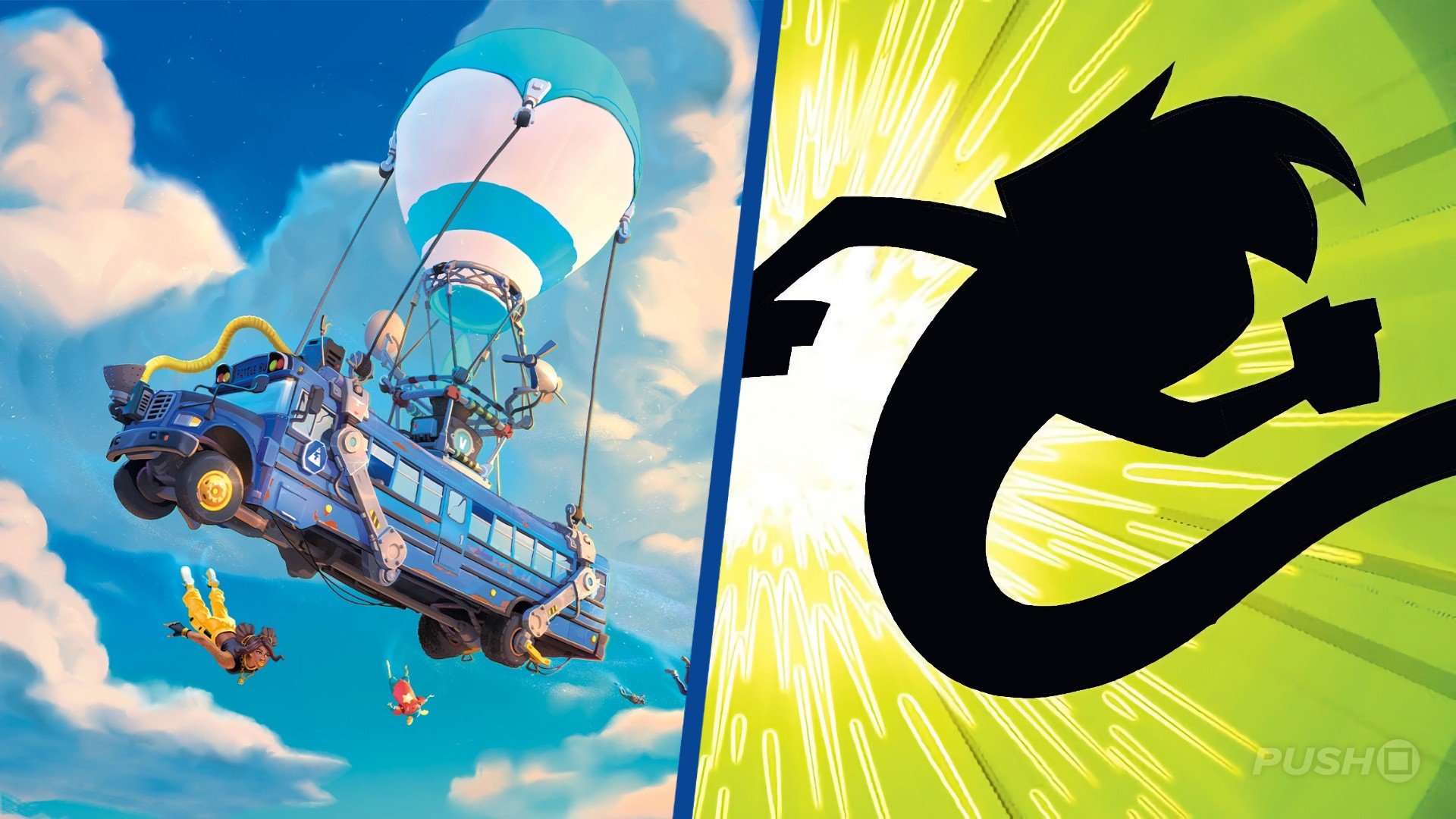
However, in the interim, something unusual happened: the Battle Bus that normally drops players into the vast Battle Royale map was destroyed. The good news is that, thanks to players working together to repair it, the vehicle is on its way back to the game.

In addition, Epic Games has teased some incoming new items to the game's shop, and among them are the first Nickelodeon crossover skins, and it's not who you'd expect.

Danny Phantom, alongside friend Sam Manson, are joining the game, available in the item shop from 5th December.

As mentioned, this is the first of what is rumoured to be many Nickelodeon/Paramount properties coming to the game.

Leaked a little while ago was SpongeBob SquarePants, so it seems that Nicktoons like these could be the focus of this collaboration.

Chapter 7 begins on 11th December, when we expect there will be more surprises.

User Feedback

Recommended Comments

There are no comments to display.

Forum Statistics

  • Total Topics 576
  • Total Posts 608

Configure browser push notifications

Chrome (Android)
  1. Tap the lock icon next to the address bar.
  2. Tap Permissions → Notifications.
  3. Adjust your preference.
Chrome (Desktop)
  1. Click the padlock icon in the address bar.
  2. Select Site settings.
  3. Find Notifications and adjust your preference.