




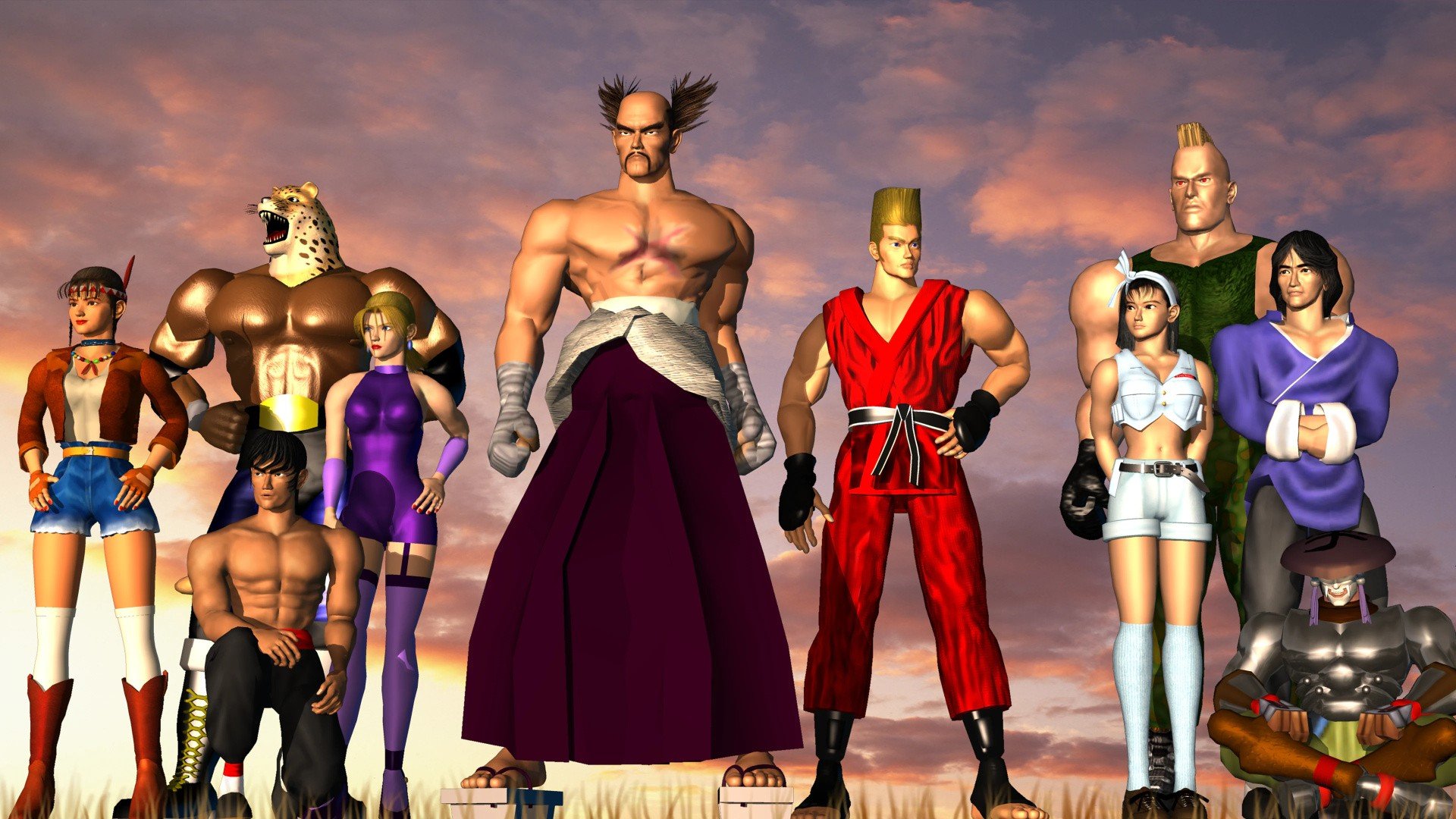

Alongside the announcement that he's leaving Bandai Namco, legendary Tekken director Katsuhiro Harada has dropped a treat for fans in the form of a 60-minute music mix.
The track, which at the time of writing is only available on SoundCloud, basically covers 30 years of Tekken history, mashing countless pieces of music together from across the series.
If you've been playing Tekken since the beginning, then this truly will feel like an exercise in pure nostalgia. Harada says he edited the track himself; it even incorporates iconic sound effects and voice samples.
"For 30 years I kept saying, 'I’ll do it someday,' and never once performed as a DJ at a tournament event," Harada writes on social media.
"So instead, I will be releasing — for the first and last time — a 60-minute TEKKEN DJ-style nonstop mix (DJ mix), personally edited by myself. Listening to it brings back many memories," he concludes.
We think it's a great little gift, and again, it'll hit longtime Tekken fans in a similar way to what Harada's describing.
Do you have any favorite Tekken tracks? Will you be giving this mega mix a listen? Remember a time of much simpler combos in the comments section below.
Recommended Comments