




Rockstar Games has quietly drawn a line under an era of its mobile catalog, confirming that its titles on iOS now require iOS 17 or later to receive updates and official technical support. The change was outlined in a new support notice on Rockstar's customer service site and first reported by RockstarINTEL.
What's Changing
According to <cite index="2-1">Rockstar's own support page, support for its games on iOS now requires iOS version 17 or greater, and devices still running iOS 16 or below will no longer receive game updates or technical support.</cite> Importantly, this isn't a kill switch. The games themselves won't stop working, and nothing is being removed from anyone's device.
Rockstar's FAQ clarifies that players can still <cite index="4-1">download and play their existing iOS titles on versions earlier than iOS 17, but they won't receive any further game updates and won't be able to get technical support from Rockstar going forward.</cite> For anyone affected, the company's guidance is simply to update their device to iOS 17 if their hardware allows it.
Why It Matters
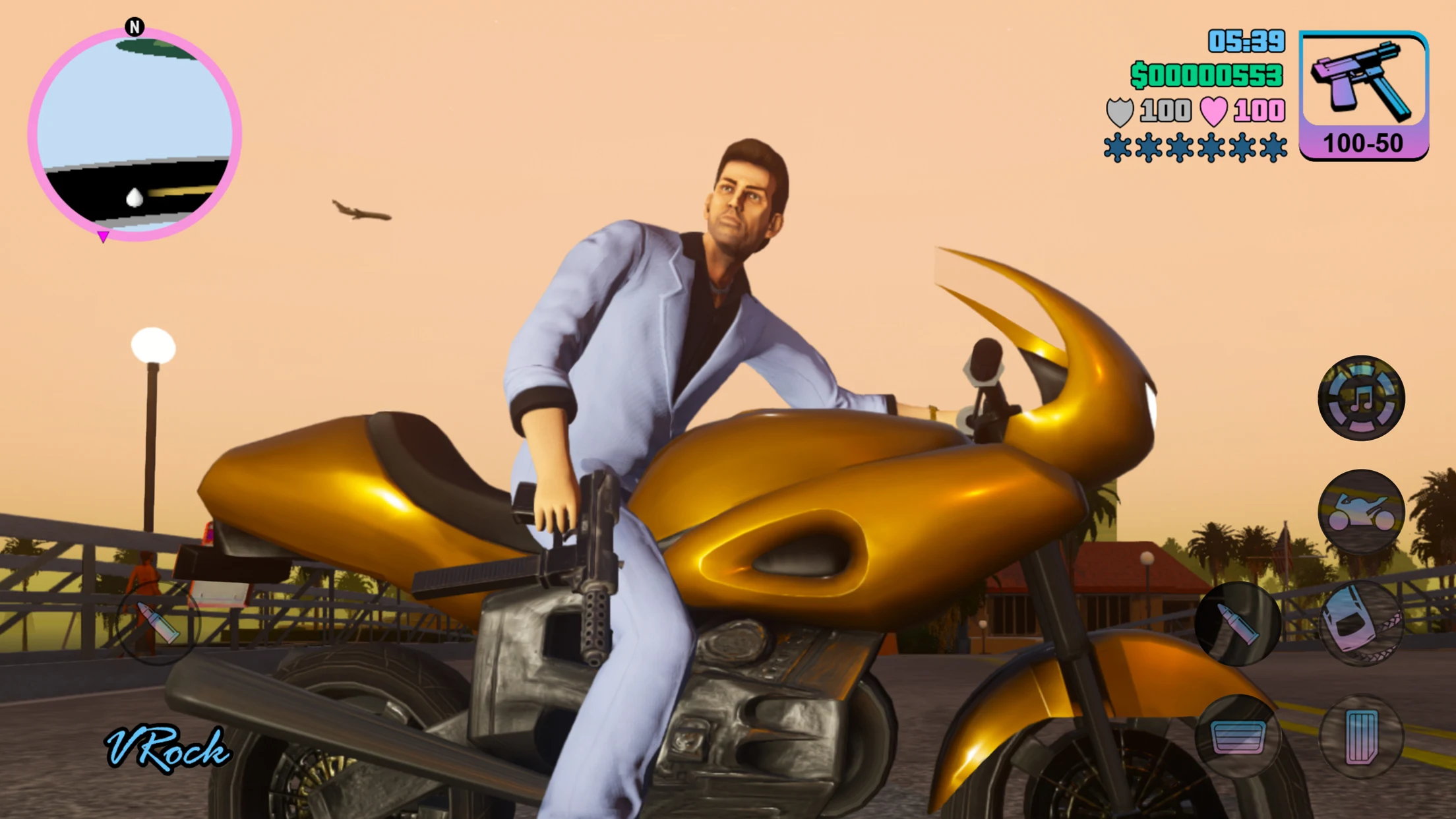
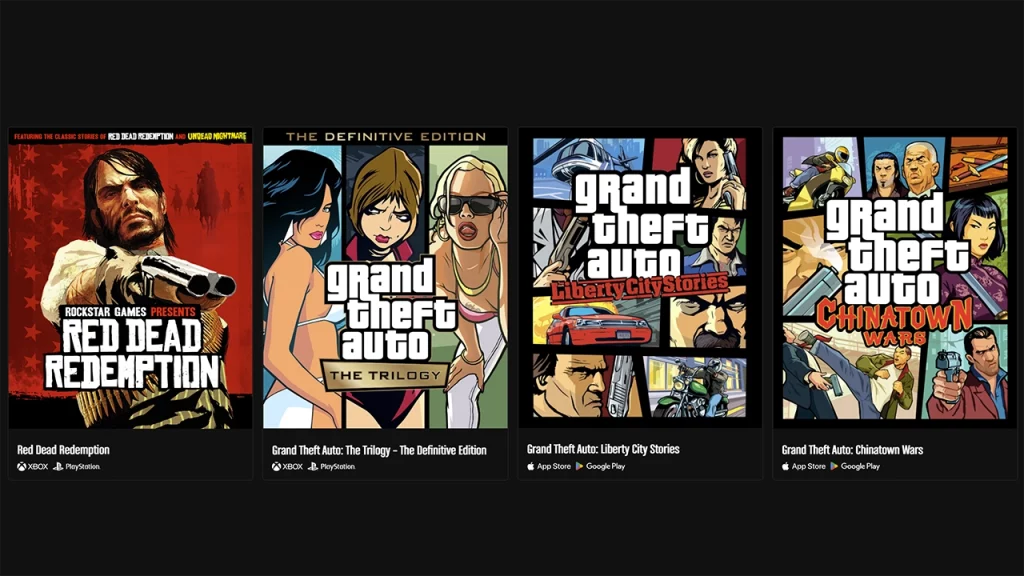
The timing is notable because Rockstar has been unusually active in the mobile space over the past couple of years, not scaling it back. The studio brought Red Dead Redemption and the GTA Trilogy — The Definitive Edition to phones and tablets, and older mobile ports like Bully, Max Payne, and San Andreas received surprise updates within the last year or so. A number of these titles, plus Grand Theft Auto: Liberty City Stories and Grand Theft Auto: Chinatown Wars, are also part of the GTA+ subscription's mobile lineup.
That backdrop makes the iOS 17 cutoff feel less like Rockstar stepping away from mobile and more like routine platform housekeeping — the kind of minimum-spec bump most long-running live-service and ported titles eventually require as Apple's own OS moves forward and older hardware ages out.
The Catch for Some Players
The wrinkle is that not every affected user can simply tap "update." Some iPhones are permanently capped at iOS 16 and are not eligible for the iOS 17 upgrade at all, meaning there's no path back to official support short of buying newer hardware. For owners of paid titles like Grand Theft Auto III, Vice City, and San Andreas on older devices, that's a harder pill to swallow than a typical "please update your app" notice, since money changed hands for software that may now quietly stop receiving fixes on their specific device.
Rockstar hasn't given a precise date for when this policy takes effect or signaled any further changes beyond ending updates and support — the company's notice points affected users toward Apple's own instructions for upgrading to iOS 17 as the recommended next step.
The Bigger Picture
Dropping support for a five-generation-old mobile OS isn't unusual in the games industry; maintaining parallel builds for aging operating systems is expensive, and few studios want engineering time tied up supporting hardware from years past. What makes this one worth watching is simply the contrast with Rockstar's recent mobile momentum — a company actively expanding its phone and tablet lineup while simultaneously trimming the tail end of devices it will keep updating.
Recommended Comments