






Whether you're a veteran of the series or just starting out, Metroid Prime 4: Beyond will have a difficult to match your skill.
In a new article on the official Japanese Nintendo website, the difficulty settings in Samus' new mission on Planet Viewros have been detailed. When you start this adventure, you will be able to select from either a 'casual' or 'normal' mode.
Casual mode will lower enemy HP and reduce the amount of damage Samus takes, and is recommended for first-time players. And as you probably guessed, normal mode offers the standard Metroid Prime experience. If you want a tougher challenge, once normal mode is cleared, you'll unlock hard mode.
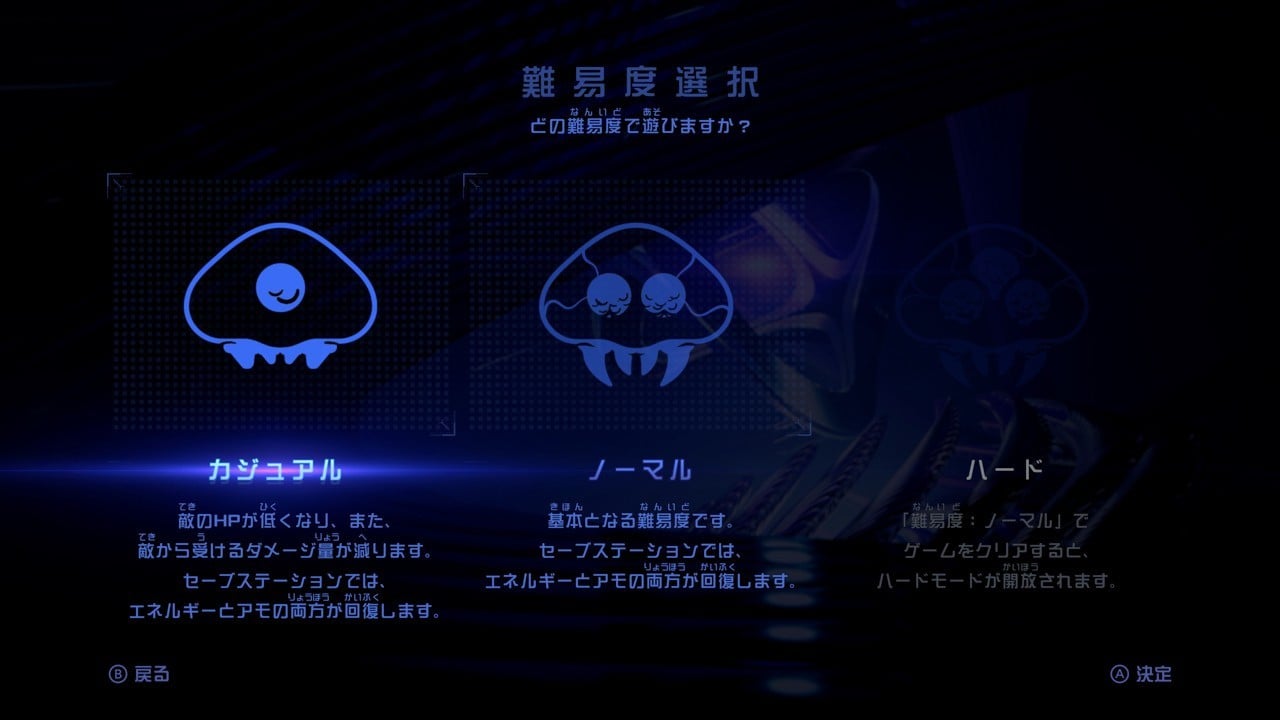
If you've played previous entries such as Metroid Prime Remastered, these difficulty settings shouldn't come as a surprise.
The same post has also detailed how players will also be able to adjust certain other in-game settings. This includes the ability to fine-tune the sensitivity of the analog and mouse controls, which can help if you're struggling with movement or aiming.
You'll also be able to adjust the screen display and volume settings to your liking. You can see what else Nintendo has revealed about Metroid Prime 4: Beyond in our previous coverage.
Recommended Comments