




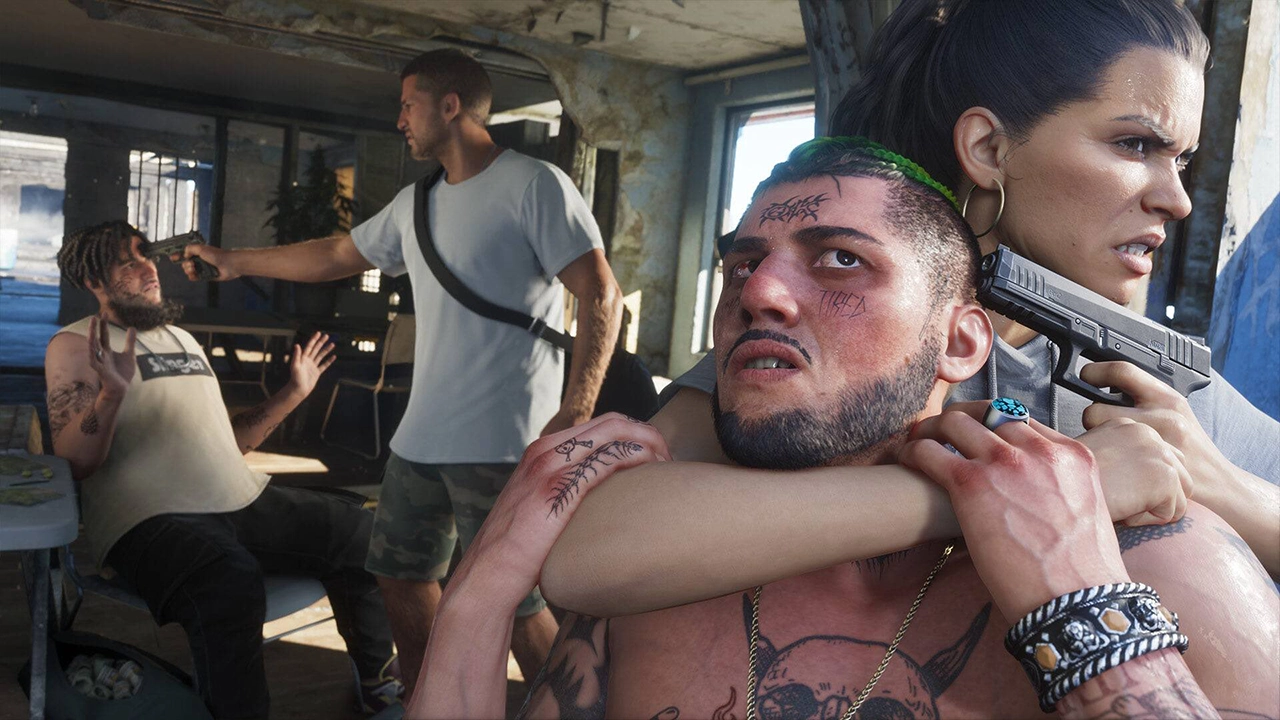

GTA VI is out, and the first thing many players will notice is how it feels in the hands. The game runs at 30FPS and carries noticeable input latency, so the default setup can come across as heavy, especially in chases and gunfights. Rockstar can't change the frame rate from a menu, but several options in the pause menu can make the game feel more responsive and more comfortable to play.
These are the settings worth a look before you spend hours in Vice City.
Motion Blur Strength (Display tab)
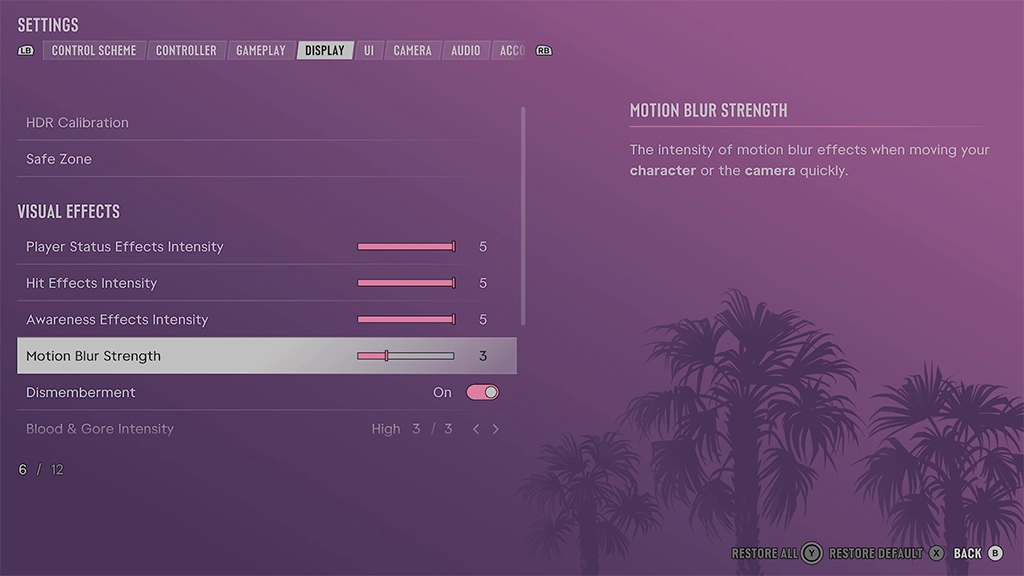
Motion blur defaults to 3. Most players turn it off in games running above 30FPS, but at 30FPS the effect is useful. Setting it to 5 or higher smooths out camera movement and takes some of the choppiness out of fast pans. Try a few higher values and keep the one that looks best on your screen.
Thumbstick Sensitivity (Controller settings)
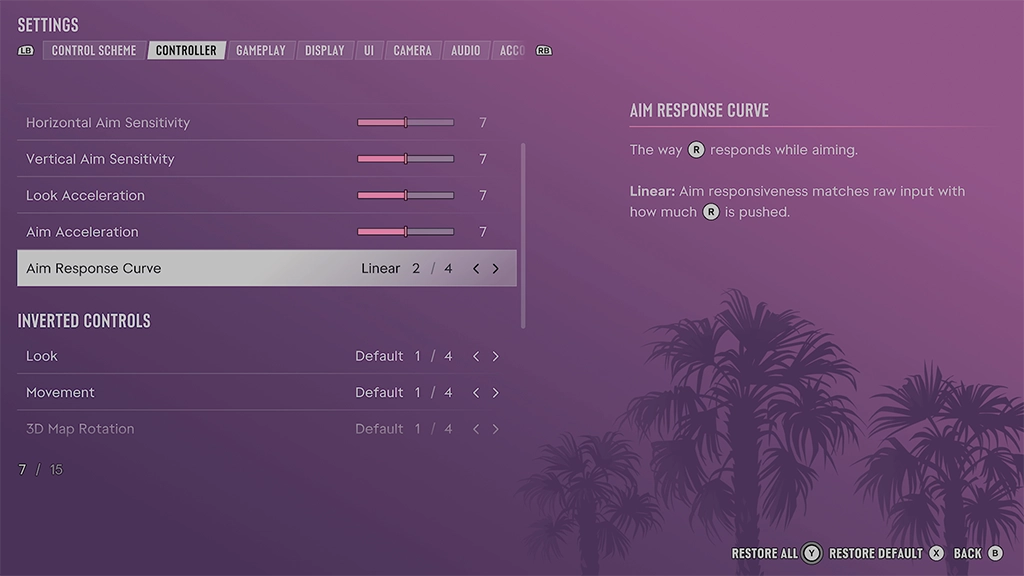
Sensitivity defaults to 7. If the camera or aiming feels slow, raising it by a point or two can help offset the latency. It comes down to personal preference, so adjust it in small steps rather than big jumps.
Deadzone (Controller settings)
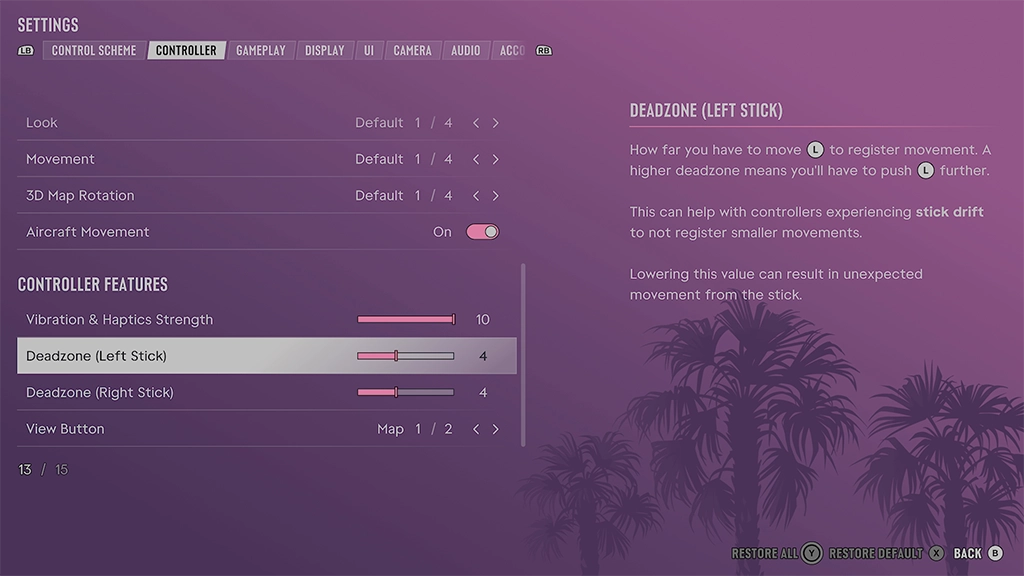
Deadzone defaults to 4. With a new controller, such as the PS5 controller GTA VI ships alongside, you can drop it to 2 and get quicker, more precise stick input. A worn controller with stick drift may need a higher value to stop unwanted movement.
Aim Response Curve (Controller settings)
Four curve options are available, and each changes how your stick movement translates into aiming. Try all four in a real firefight, not just in the menu. If you have a favorite from another shooter, start with the curve closest to it.
Mute Licensed Music (Audio tab)
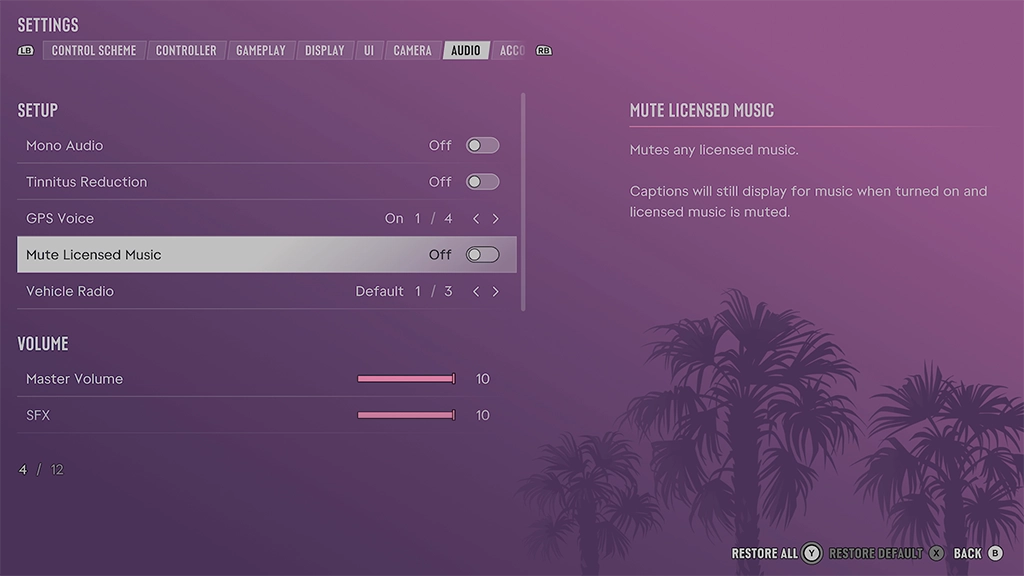
Content creators will want this one. It mutes licensed tracks so you can record or stream without copyright claims, and captions still appear for the muted music. If the radio is simply too loud for you, lowering the radio volume is another option.
GPS Voice (Audio tab)
You can switch between several navigation voices and tones. If the GPS chatter wears on you over long drives, you can turn the navigation sound off completely.
Gameplay and Accessibility Options (Gameplay tab)
The gameplay tab lets you simplify mini-games and turn on reduced vehicle damage. GTA VI is a singleplayer game, so there's no reason not to set it up however you like.
Most of these changes are small, but together they make a noticeable difference to how GTA VI feels at 30FPS. None of them fixes the underlying latency, but the controller and motion blur adjustments are the quickest way to make the game feel less sluggish. Spend a few minutes in the menus now and you won't have to fight the controls later.
Recommended Comments