




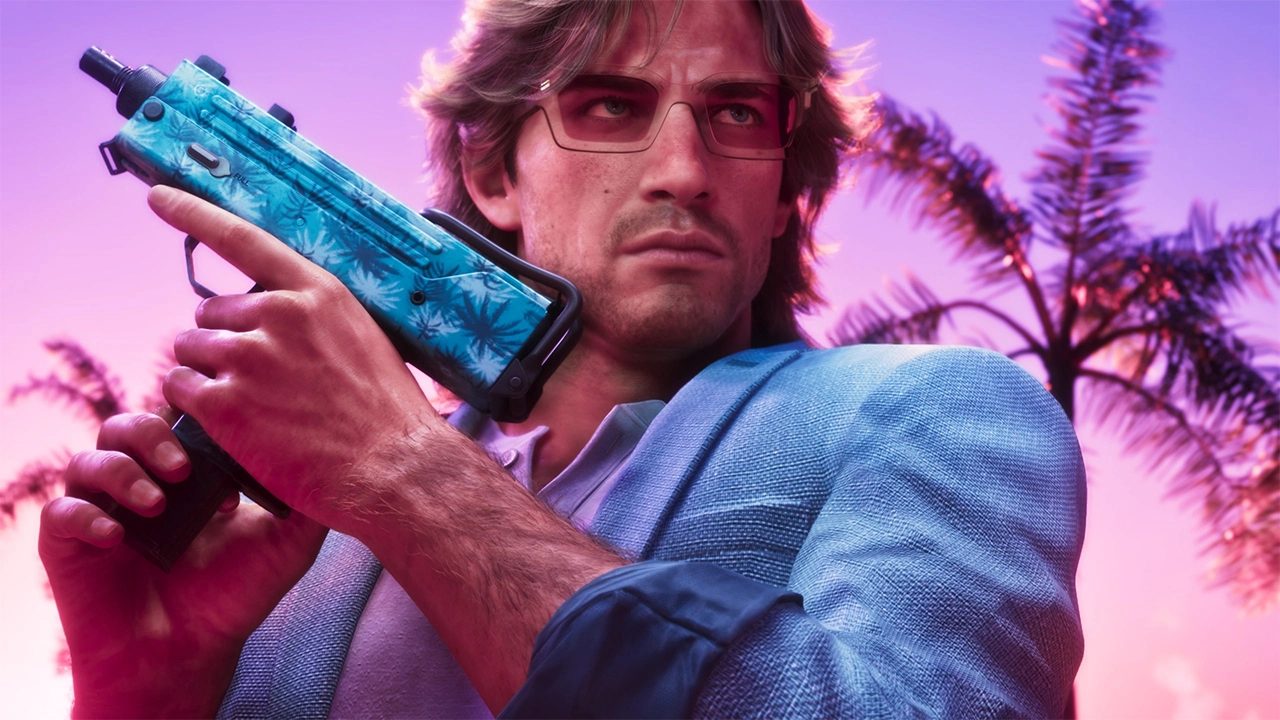

The leaker known as Cyberleek isn't slowing down. In the span of roughly 48 hours, four separate clips of GTA 6 gameplay have made their way online, and the latest one is the most substantial yet — a two-minute-24-second stretch of raw footage that finally gives fans a proper look at the game's weapon wheel.
What's in the Clip
The video opens with Jason walking down a road as the sun sets, before he kicks a police officer off a motorcycle and steals it. From there, whoever captured the footage pulls up the weapon wheel, which splits into two separate wheels — one for weapons, one for items — echoing the structure Rockstar used in Red Dead Redemption 2 rather than the single sprawling wheel from GTA V. A money counter sits in the top-right corner, and it looks like anything pulled up in the wheel can also be dropped on the spot.
After stabbing the officer and making off with the bike, Jason speeds down the road with sirens blaring, eventually losing control and crashing into a canal. He climbs out and approaches a group of homeless NPCs, eavesdropping on their conversation — until one of them notices, shoves him, and a fight breaks out. Jason slaps back, a wanted alert flashes on screen warning that police now have a description of his clothes, face, and car, and the NPC starts slashing at him. What follows is grim: Jason pulls his hunting knife and kills several of the encampment's residents. As with the third leaked clip, the scene closes on a cutscene featuring Jason and Cal.
How It Fits With the Other Leaks

This is the fourth clip attributed to Cyberleek in two days, and taken together, the leaks have already given the internet a surprisingly detailed inventory of GTA 6's mechanics: an eight-slot weapon wheel, two healing items (a "Zombix" pill and an EpiPen), a Red Dead-style Greet/Antagonize taunt system for interacting with NPCs, body looting, a returning "Crime Reported" mechanic that lets bystanders phone in Jason's crimes, and a six-star wanted system. Several outlets have also pointed out a detail that helps date the footage — the song playing over one of the clips is Tate McRae's "Sports Car," which came out in early 2025, suggesting this build is relatively recent rather than ancient pre-production footage.
Copyright takedowns have been hitting the reuploads almost as fast as they spread, which — as several outlets covering the leaks have noted — is itself being read as a signal that Take-Two considers the footage genuine and wants it gone.
The Bigger Picture
The leaks have also stirred controversy over the leaker's stated motives, which have been tied to a broader anti-digital-only-release stance, and consumer advocacy group Stop Killing Games has publicly distanced itself from the leaks. With Rockstar's own "Extended Look" trailer still roughly a week out on Netflix, the fact that Cyberleek appears to be working from an actual playable build raises the uncomfortable possibility of further leaks — including, potentially, story and ending content — before Rockstar gets to reveal anything on its own terms.
Rockstar has not commented on the leaks.
Recommended Comments