





Jump to content
View in the app

A better way to browse. Learn more.

GTA Forum

A full-screen app on your home screen with push notifications, badges and more.

To install this app on iOS and iPadOS
  1. Tap the Share icon in Safari
  2. Scroll the menu and tap Add to Home Screen.
  3. Tap Add in the top-right corner.
To install this app on Android
  1. Tap the 3-dot menu (⋮) in the top-right corner of the browser.
  2. Tap Add to Home screen or Install app.
  3. Confirm by tapping Install.

Register

Interested in GTA ? Join our community on the GTA Forum ! Exchange knowledge, learn about new things, use guides, and stay up to date with GTA Online and FiveM.

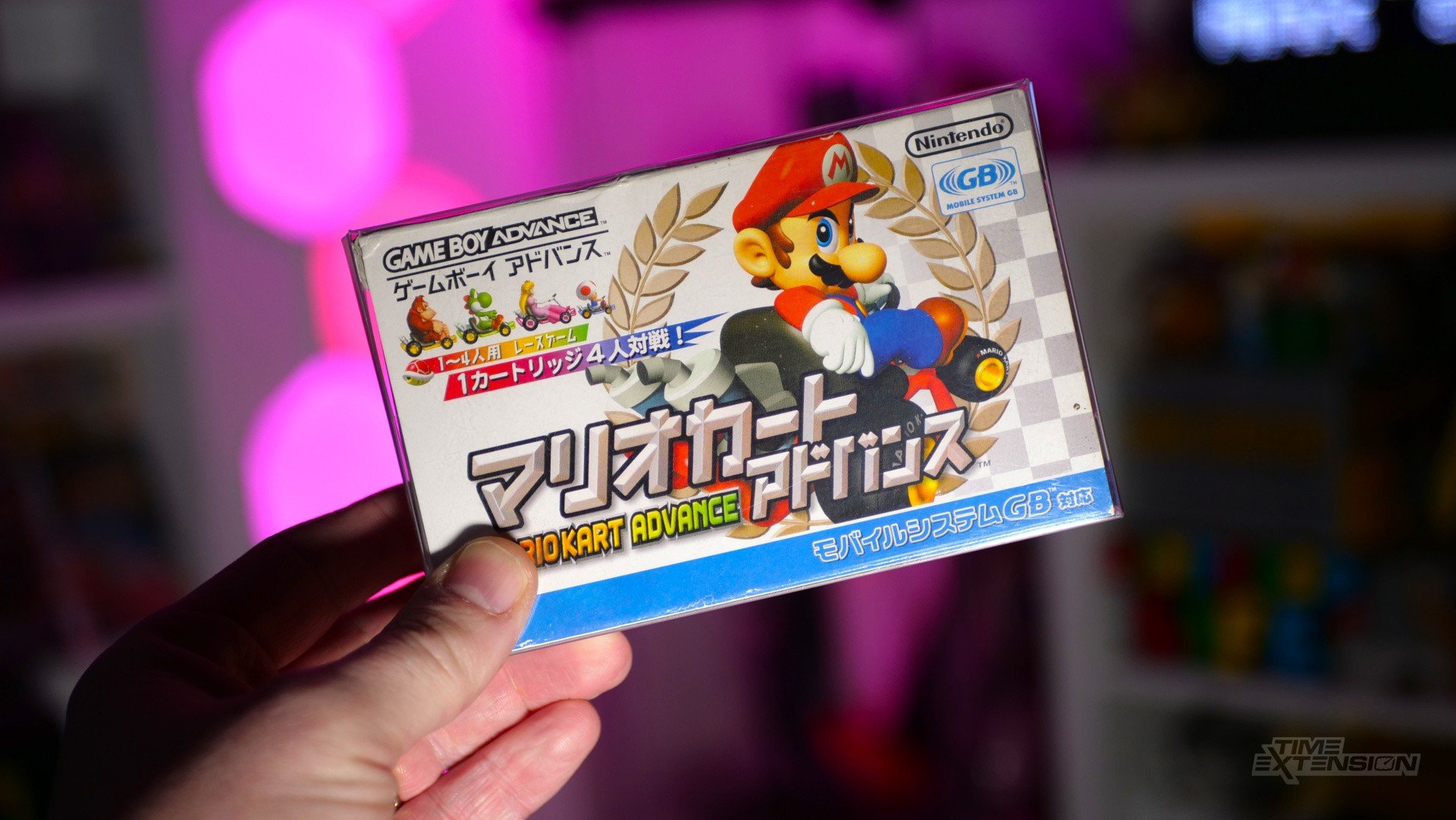
24 Years After It Launched, Fans Have Finally "Fixed" Mario Kart: Super Circuit

Mario Kart: Super Circuit is one of the games I remember most fondly when thinking about the Game Boy Advance. The console was still fresh and new back in 2001, and soon after launch it was playing host to a portable version of one of my favourite SNES games of all time. It felt too good to be true.

I still enjoy Super Circuit, even after almost a quarter of a century, so it amazes me now to hear that the game has been "fixed" by fans to make it even better.

As reported by Video Game Esoterica, Super Circuit is, in fact, hiding a dirty secret. While the game runs at 60fps, the track itself is rendering at half that frame rate. Thankfully, a new patch created by antimattur solves this issue.

"This patch modifies the map rendering code in mksc to update at 60fps," explains the developer. "This has no impact on performance as the map scaling parameters were already being updated at 60fps, but were only being read at 30fps."

You can grab the patch here, but you'll need to supply your own ROM.

User Feedback

Recommended Comments

There are no comments to display.

Forum Statistics

  • Total Topics 576
  • Total Posts 608

Configure browser push notifications

Chrome (Android)
  1. Tap the lock icon next to the address bar.
  2. Tap Permissions → Notifications.
  3. Adjust your preference.
Chrome (Desktop)
  1. Click the padlock icon in the address bar.
  2. Select Site settings.
  3. Find Notifications and adjust your preference.